In Part 9, I built the malware-analysis segment. In this part, I add the Windows identity layer: Active Directory, DNS, DHCP, and the first domain-joined client.
This is where the lab becomes useful for Windows telemetry, Sysmon, Group Policy, domain logons, Atomic Red Team tests, and later Wazuh detection work.
What I Built
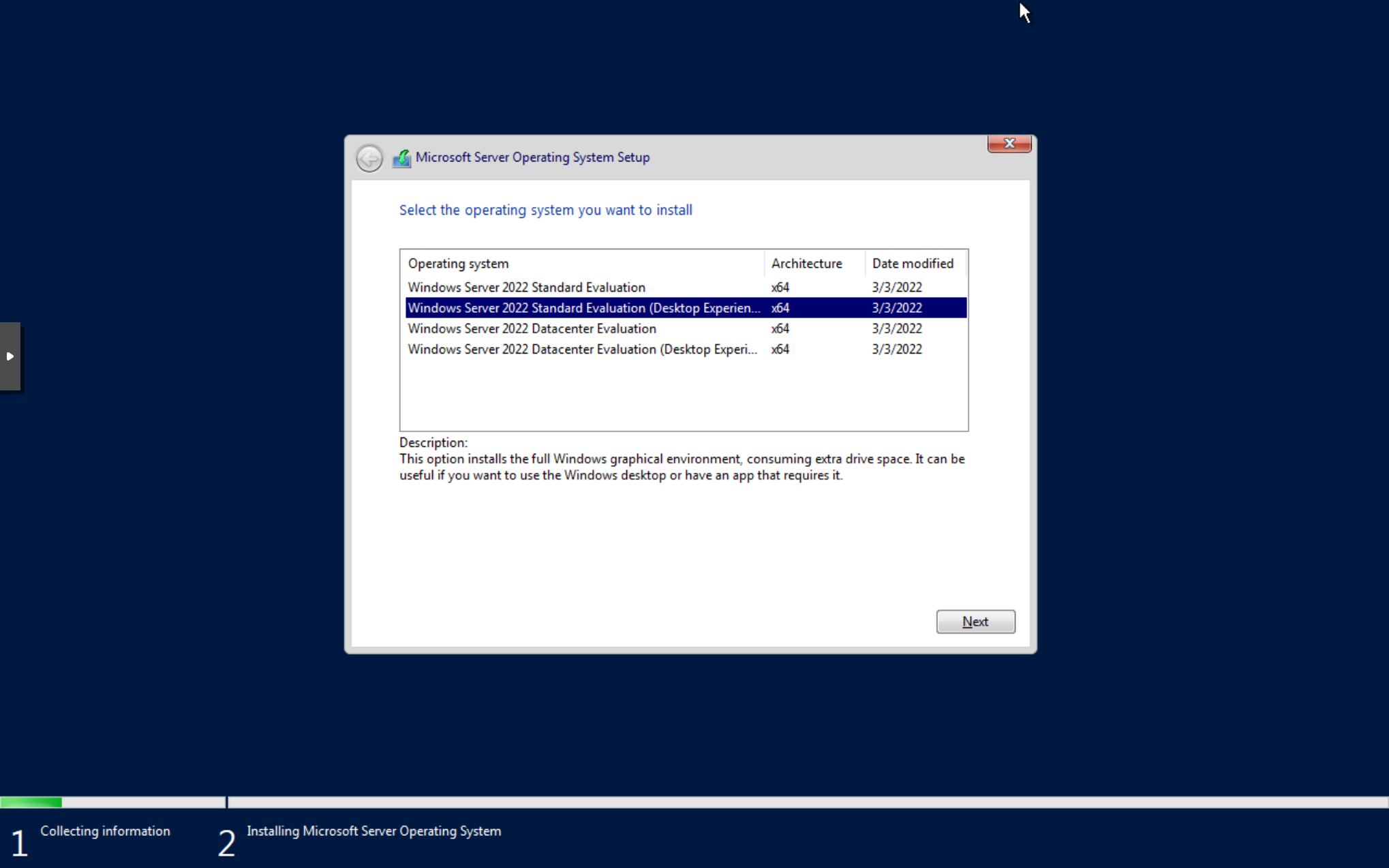
Server:       Windows Server 2022 Desktop Experience
VM name:      prod-winserver
VLAN:         20 / DEFENCE
IP:           10.10.20.20/24
Gateway:      10.10.20.1
Domain:       ad.plumy.lab
NetBIOS:      AD
Roles:        AD DS, DNS, DHCP
Client VLAN:  60 / CLIENT
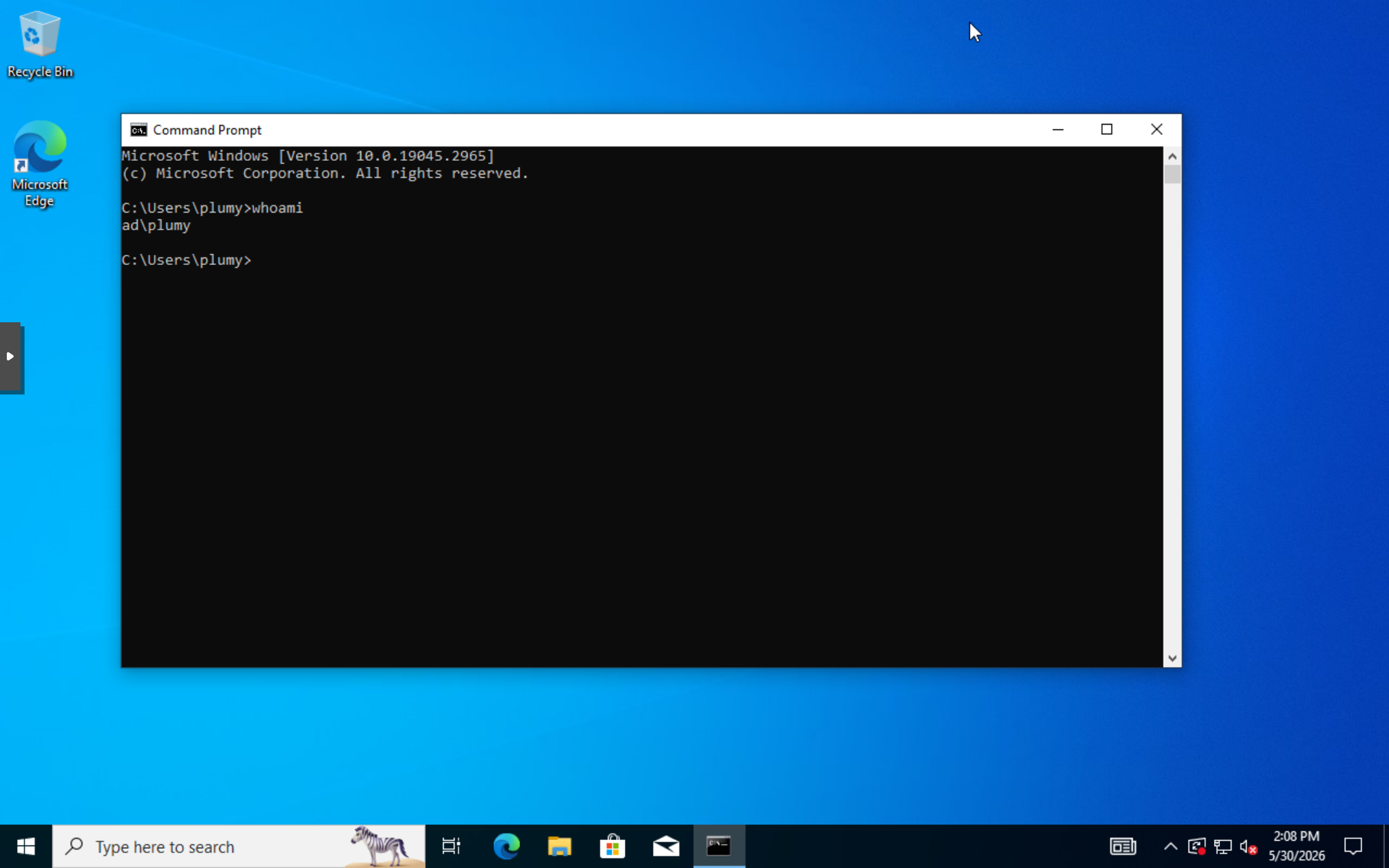
Client test:  domain join and ad\plumy login
Telemetry:    Wazuh agent on DC and client
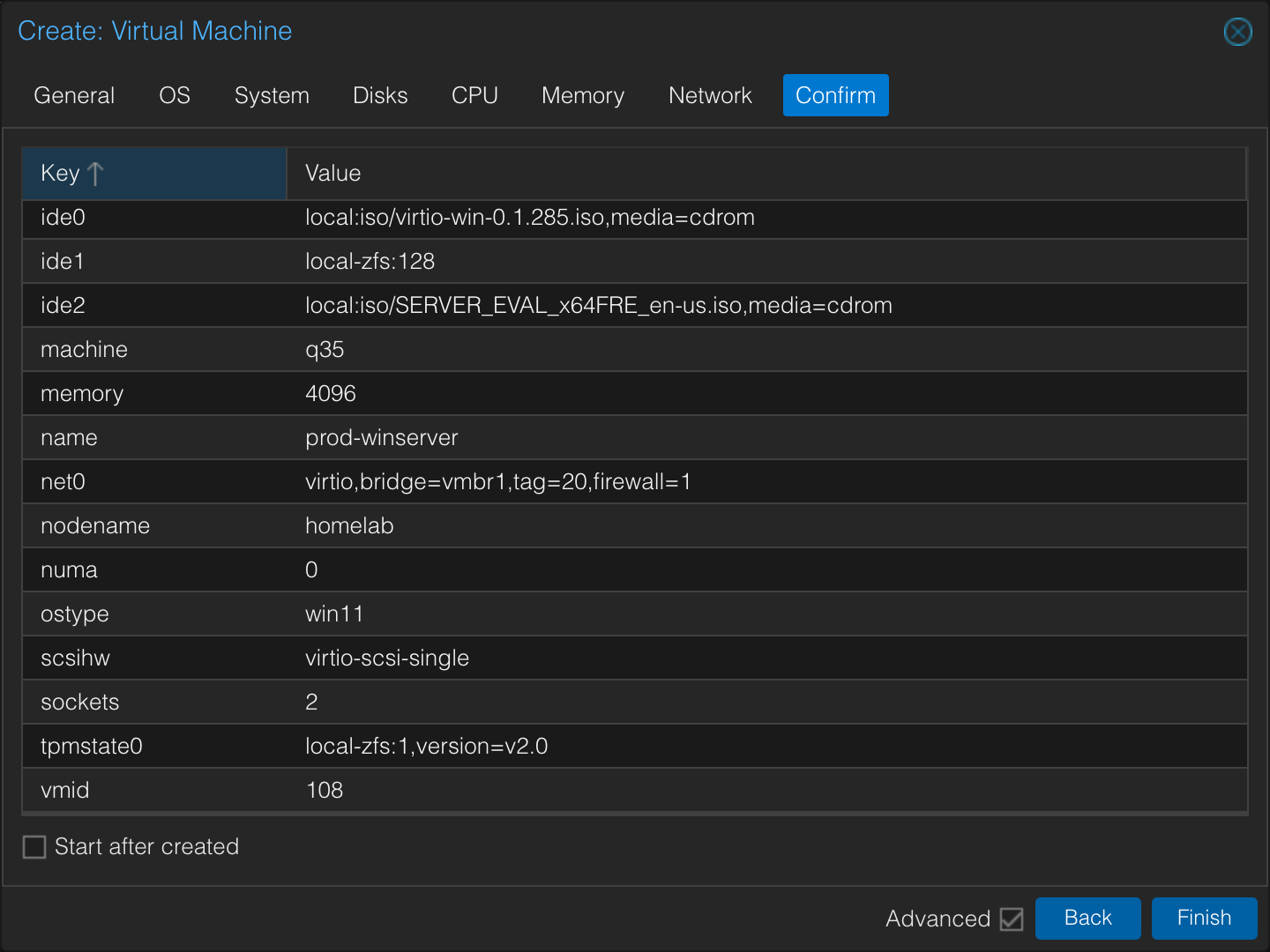
Why This Matters
Active Directory gives the lab realistic Windows behavior:
- domain users and privileged accounts;
- DNS-backed service discovery;
- Group Policy;
- domain logon events;
- Windows client management;
- a base for Sysmon and attack simulation.
The point is not only to install AD. The point is to create a Windows environment where detections and investigations have realistic context.
Topology Slice
DEFENCE VLAN 20
  |-- Windows Server / DC / DNS / DHCP: 10.10.20.20

CLIENT VLAN 60
  |-- Windows client: DHCP lease 10.10.60.100

pfSense
  |-- routes VLANs
  |-- relays DHCP to 10.10.20.20
Build Steps
Install Windows Server Desktop Experience
I chose Desktop Experience instead of Server Core because I am learning AD administration and want the GUI tools while building intuition.
Static IP on the server:
IP address: 10.10.20.20
Subnet:     255.255.255.0
Gateway:    10.10.20.1
DNS:        10.10.20.20
VirtIO note: during install, load the Windows Server 2022 storage driver from the VirtIO ISO, usually under amd64\2k22\viostor.inf.
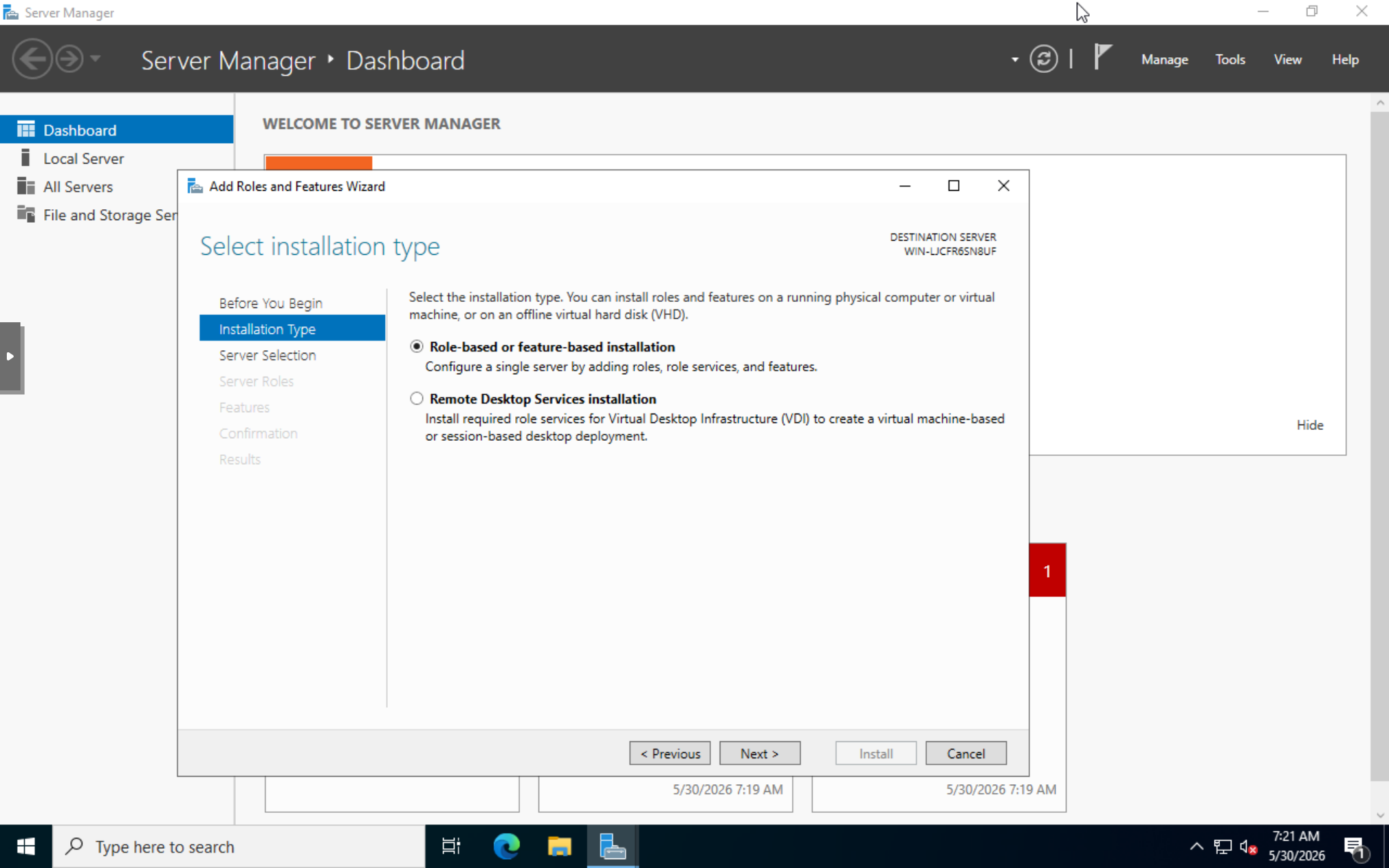
Install AD DS and DNS
Roles selected:
Active Directory Domain Services
DNS Server
Management tools
After the role install, I promoted the server to a domain controller and created a new forest:
Root domain name: ad.plumy.lab
NetBIOS:          AD
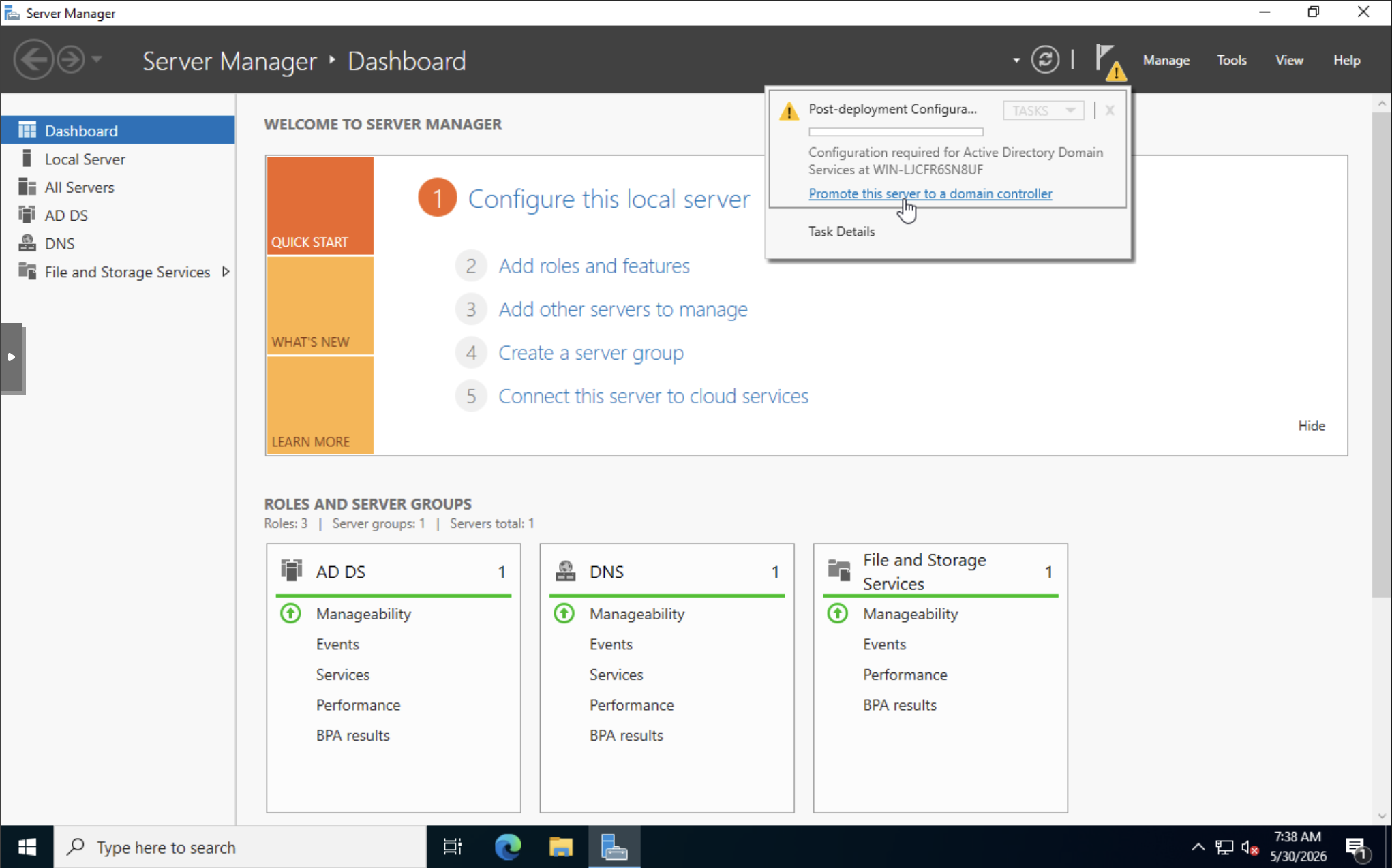
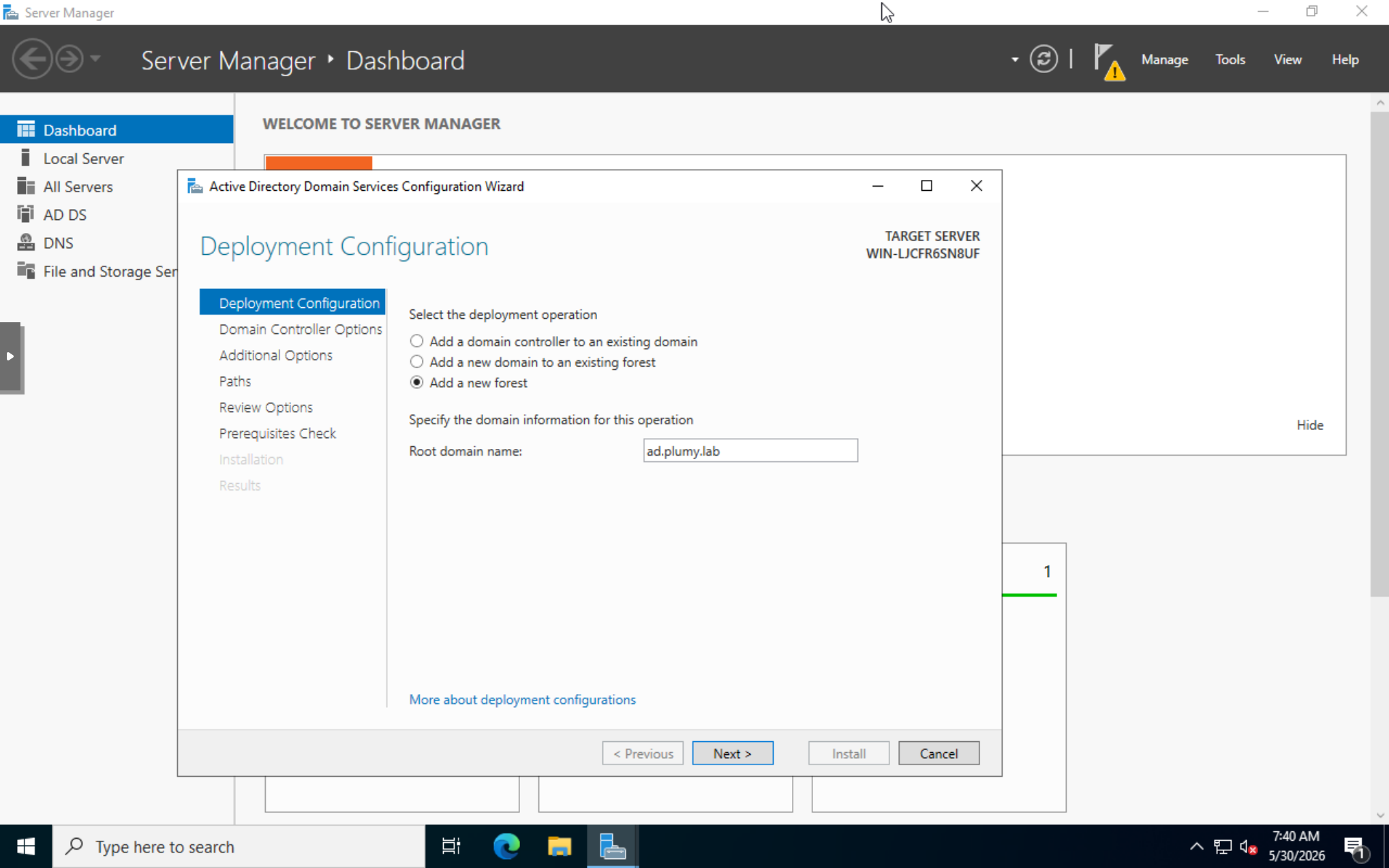
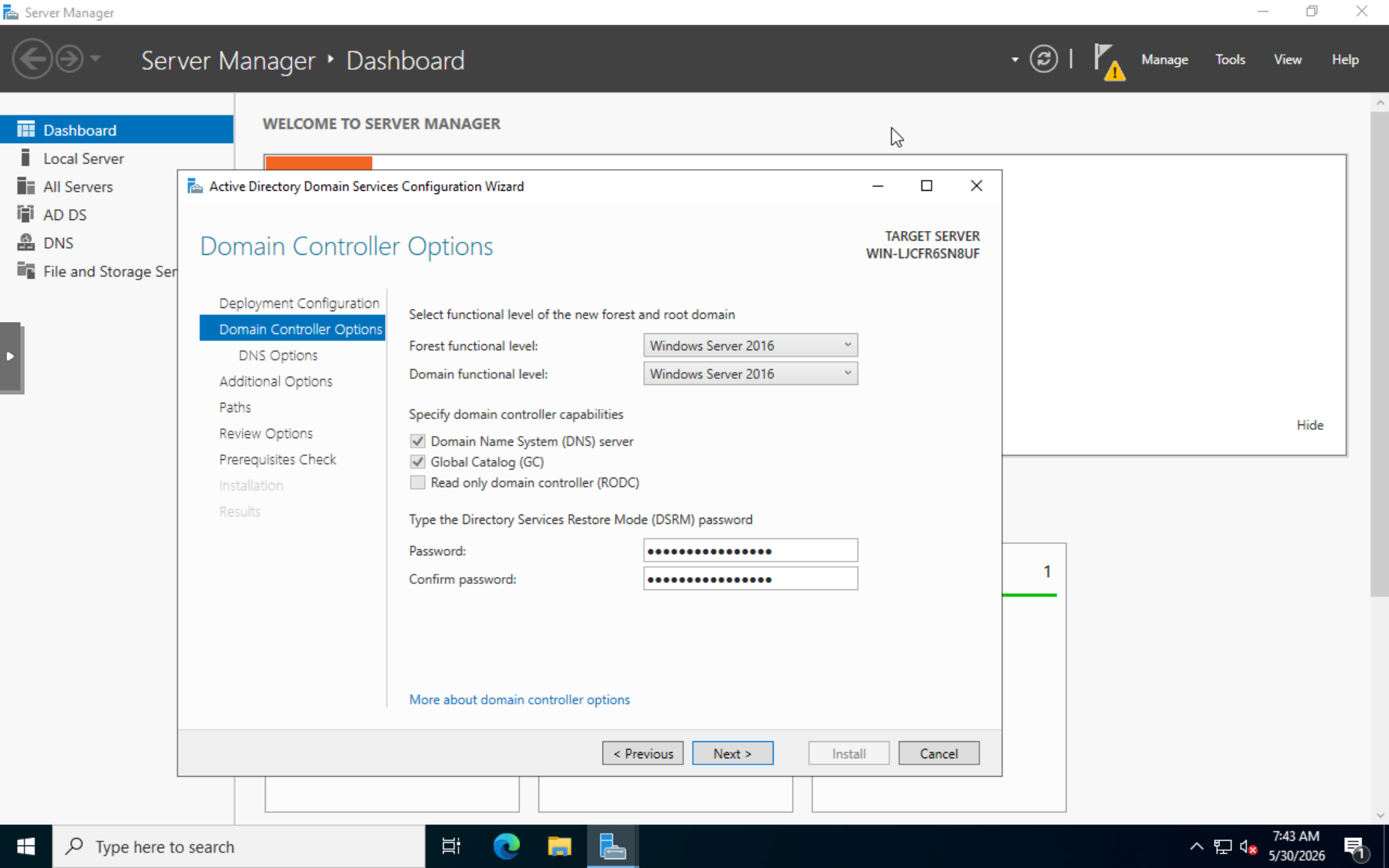
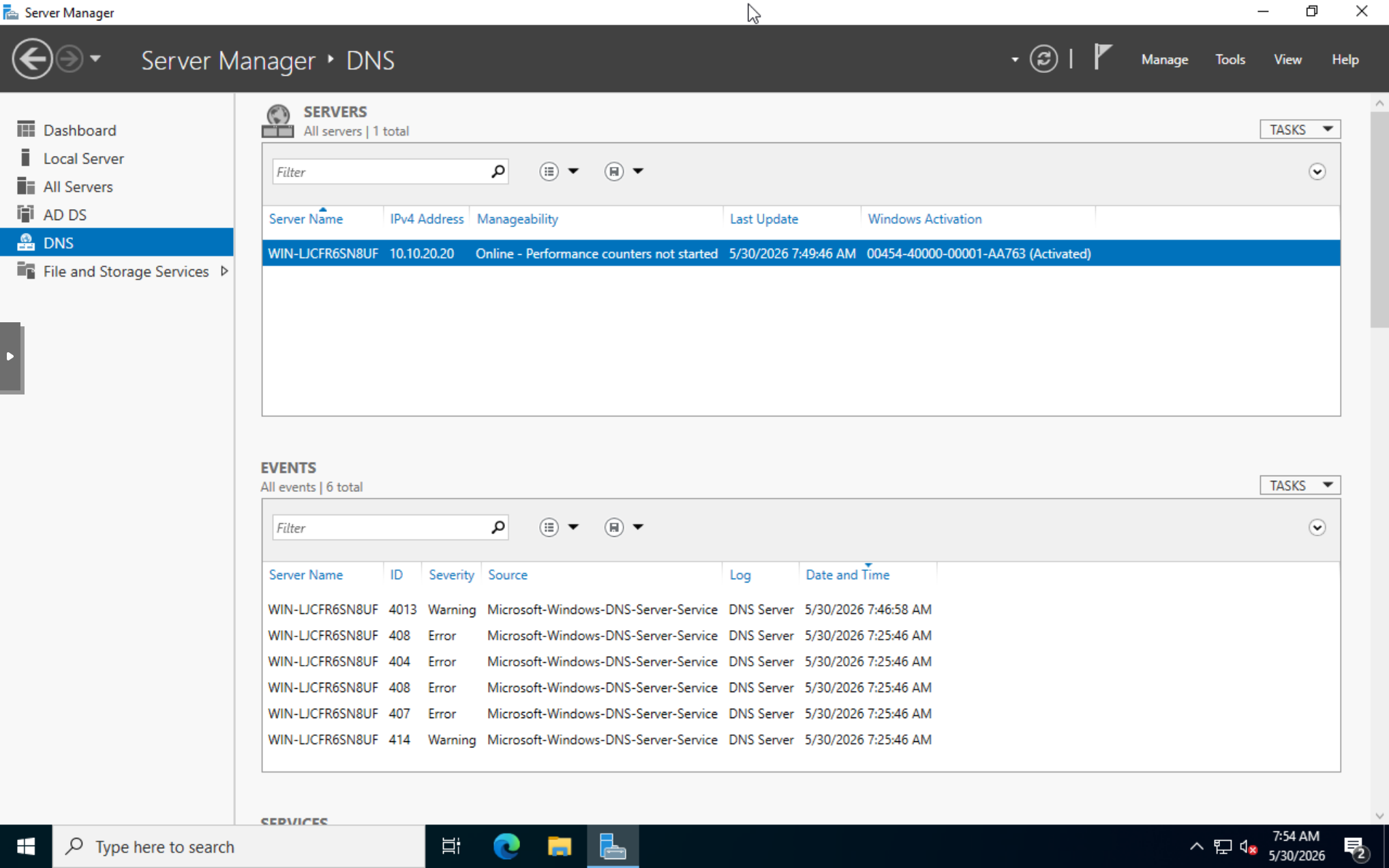
The DNS delegation warning is normal for this lab. There is no parent public DNS zone delegating ad.plumy.lab.
Create Users
I created a normal domain user for daily logon and a separate administrative account for privileged work.
Normal user:       workstation login and tests
Admin account:     joins, AD changes, privileged actions
Built-in admin:    avoided for daily work
That separation matters later when Wazuh and Sysmon logs show who performed an action.
Install and Authorize DHCP
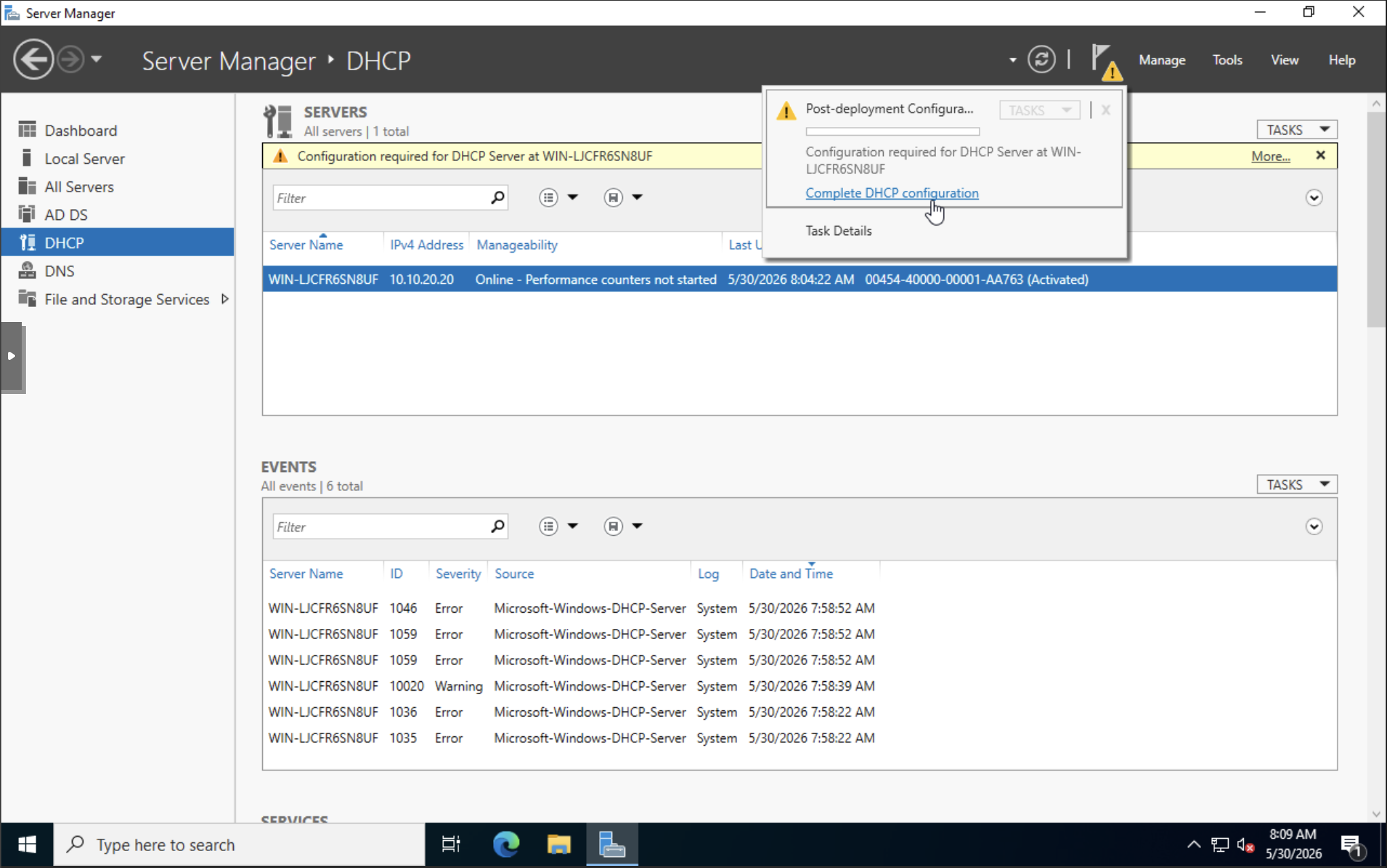
After adding the DHCP Server role, I completed post-deployment configuration so the DHCP server is authorized in AD.
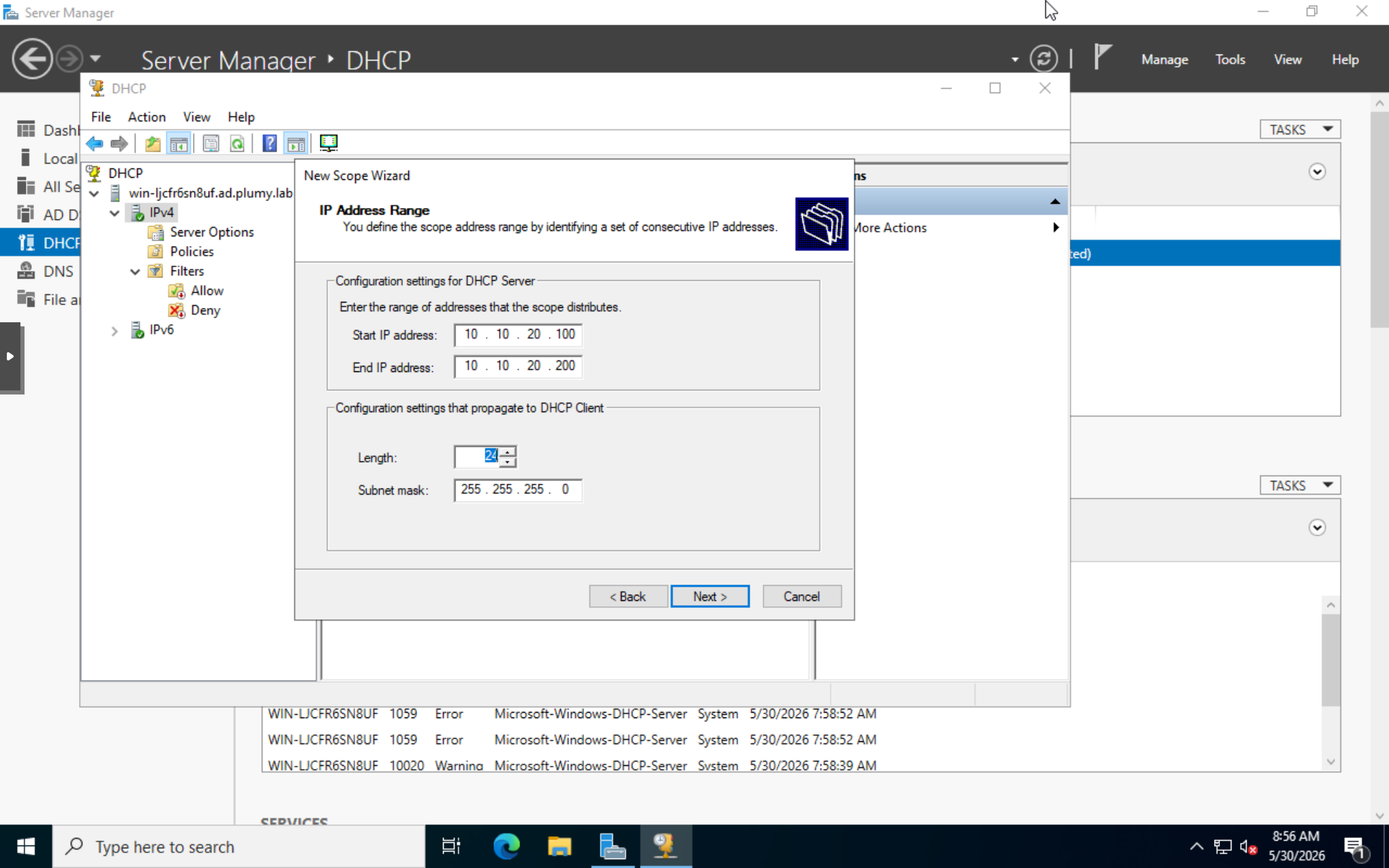
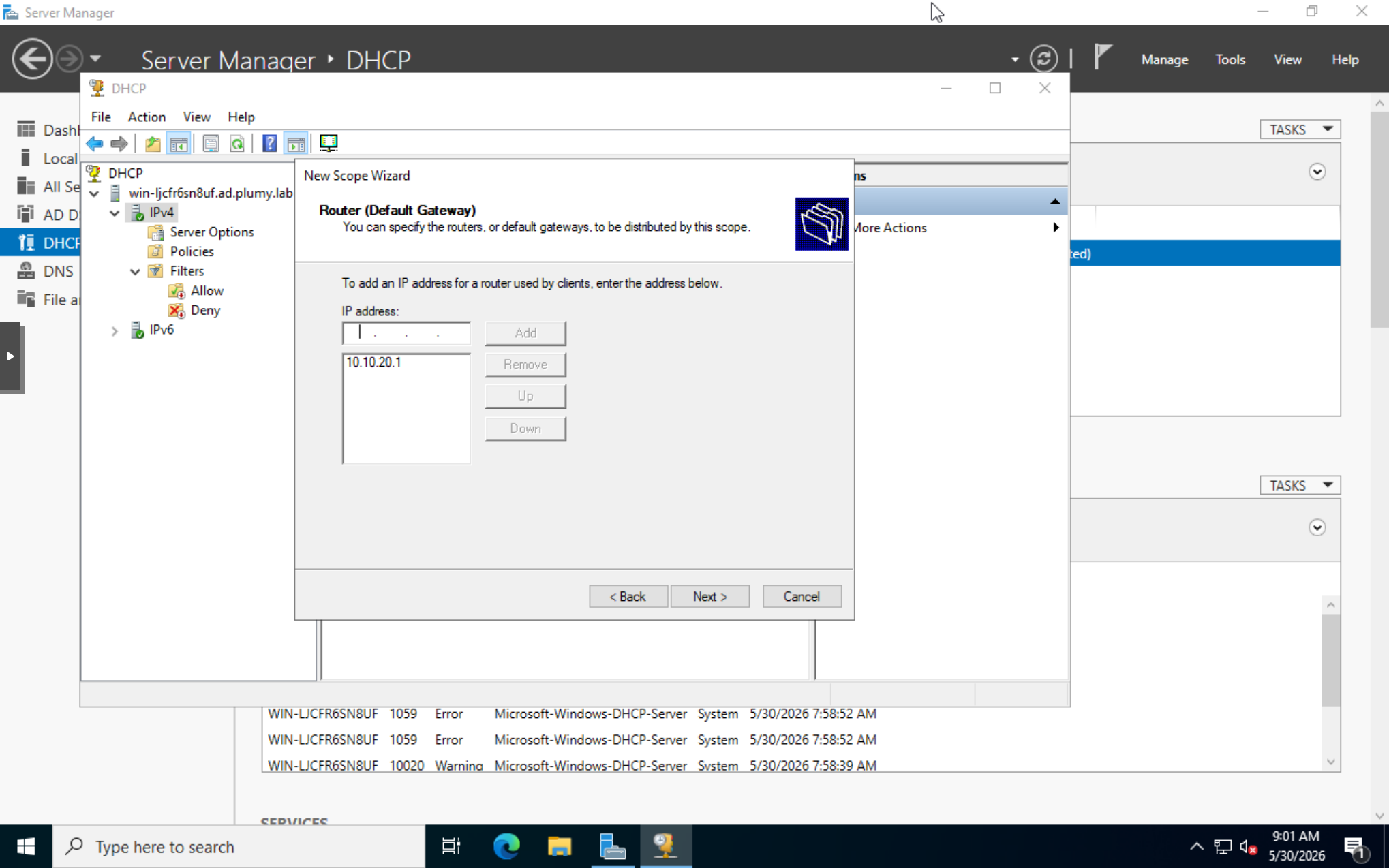
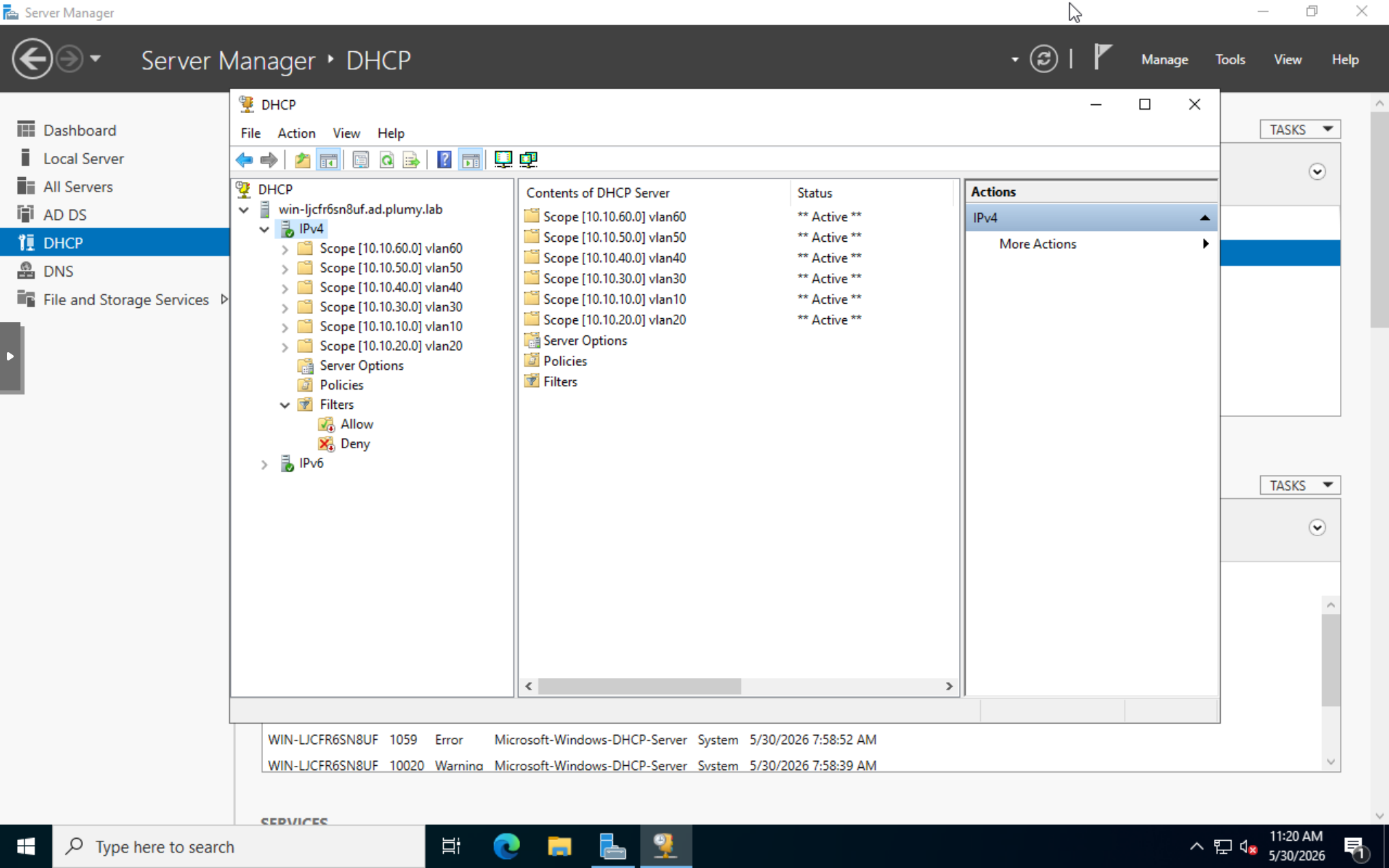
Scope pattern:
Scope name:     vlanXX
Subnet:         10.10.XX.0/24
Pool:           10.10.XX.100 - 10.10.XX.200
Router option:  10.10.XX.1
DNS server:     10.10.20.20
DNS domain:     ad.plumy.lab
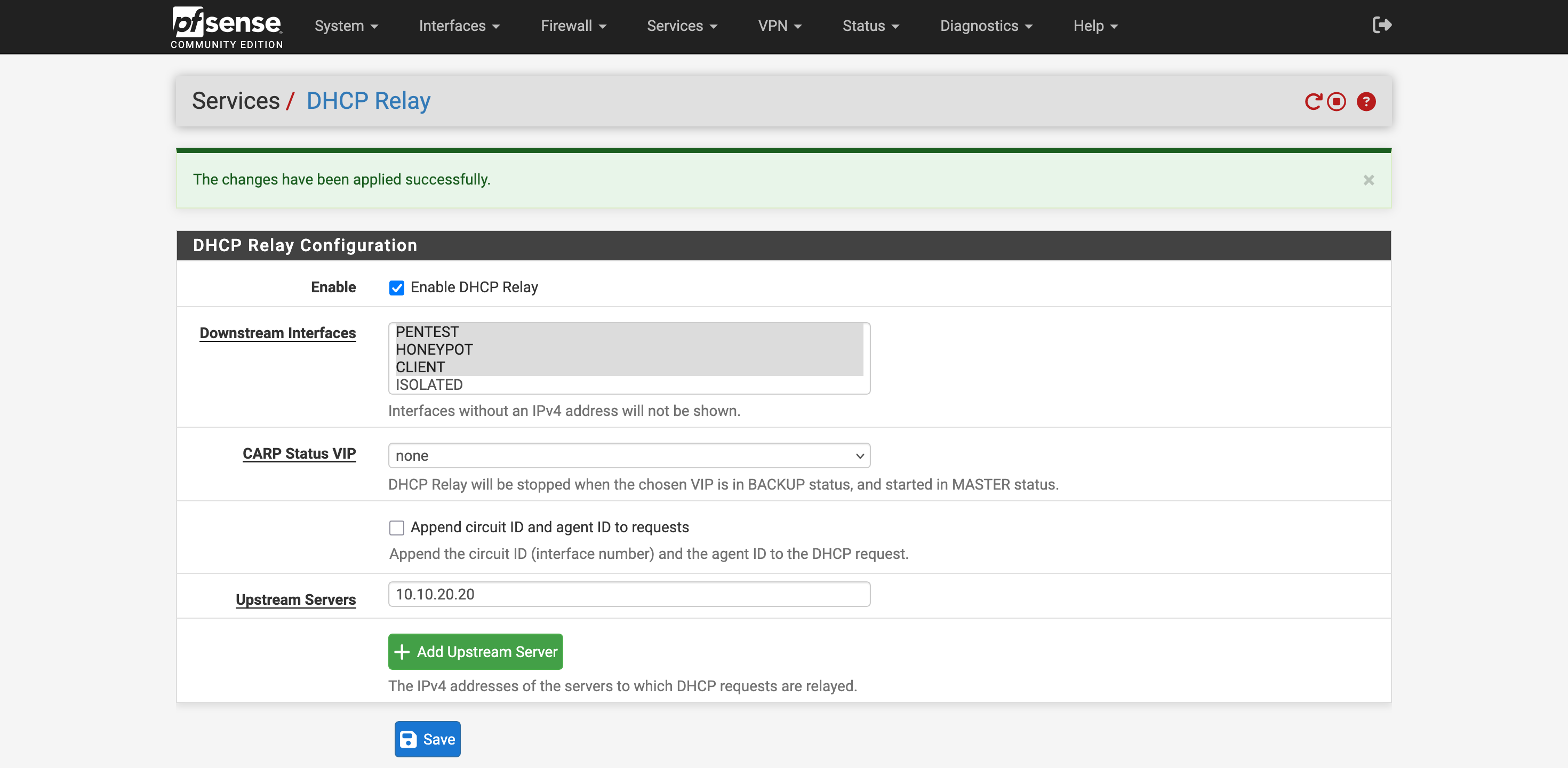
Move pfSense to DHCP Relay
pfSense DHCP Relay cannot run while pfSense DHCP Server is enabled on any interface. My migration order was:
1. Create Windows DHCP scopes.
2. Confirm static IPs for important infrastructure.
3. Disable pfSense DHCP server on VLAN interfaces.
4. Enable DHCP Relay.
5. Upstream server: 10.10.20.20.
Test VLAN 60 and Join the Domain
Client DHCP result:
IP address: 10.10.60.100
Subnet:     255.255.255.0
Gateway:    10.10.60.1
DNS server: 10.10.20.20
Suffix:     ad.plumy.lab
Validation commands:
ipconfig /all
ping 10.10.60.1
ping 10.10.20.20
nslookup ad.plumy.lab
Domain join path:
sysdm.cpl -> Computer Name -> Change -> Member of: Domain -> ad.plumy.lab
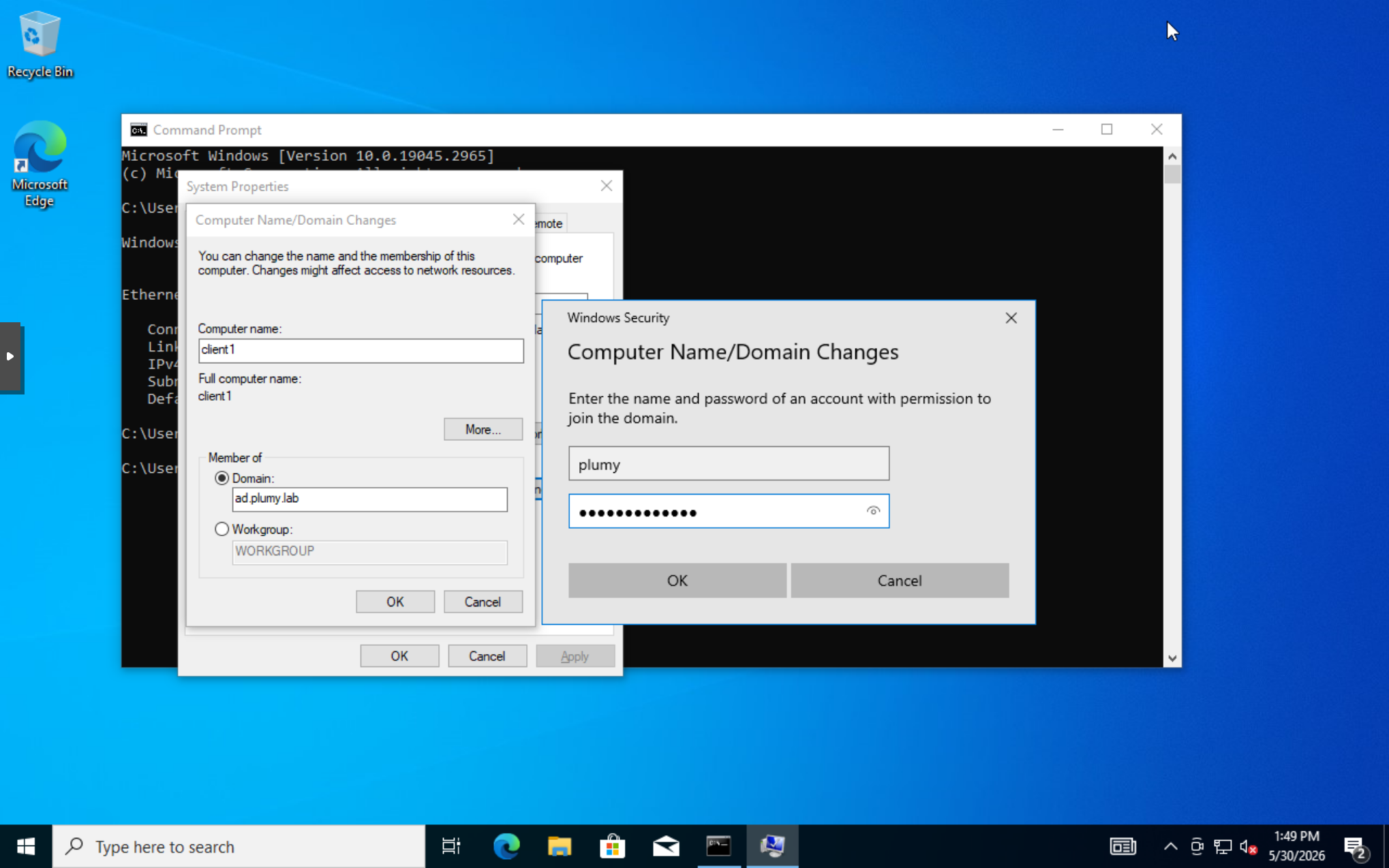
One important Windows edition note: Windows Home cannot join an AD domain. The client needs Pro, Enterprise, Education, or Server. The N suffix only means the European media-feature variant.
Add the Wazuh Windows Agent Baseline
Before firewall hardening and Sysmon testing, I installed the Wazuh agent on the Windows Server/DC and the Windows client. This gives Part 11 a known-good telemetry path to validate after the firewall rules change.
Wazuh manager: 10.10.10.99
DC agent:      WIN-LJCFR6SN8UF / 10.10.20.20
Client agent:  client1 / 10.10.60.100
Version:       Wazuh 4.14.5
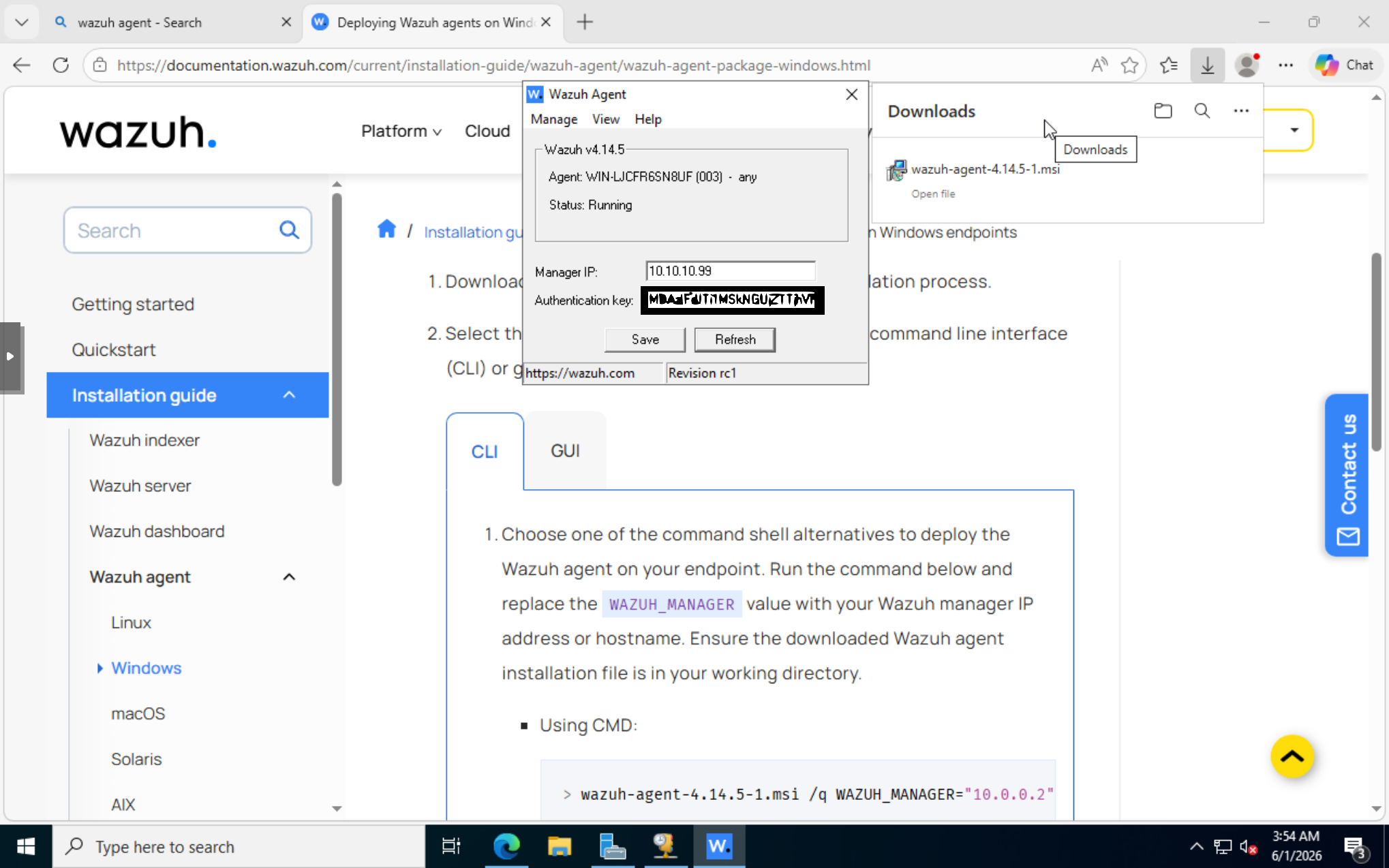
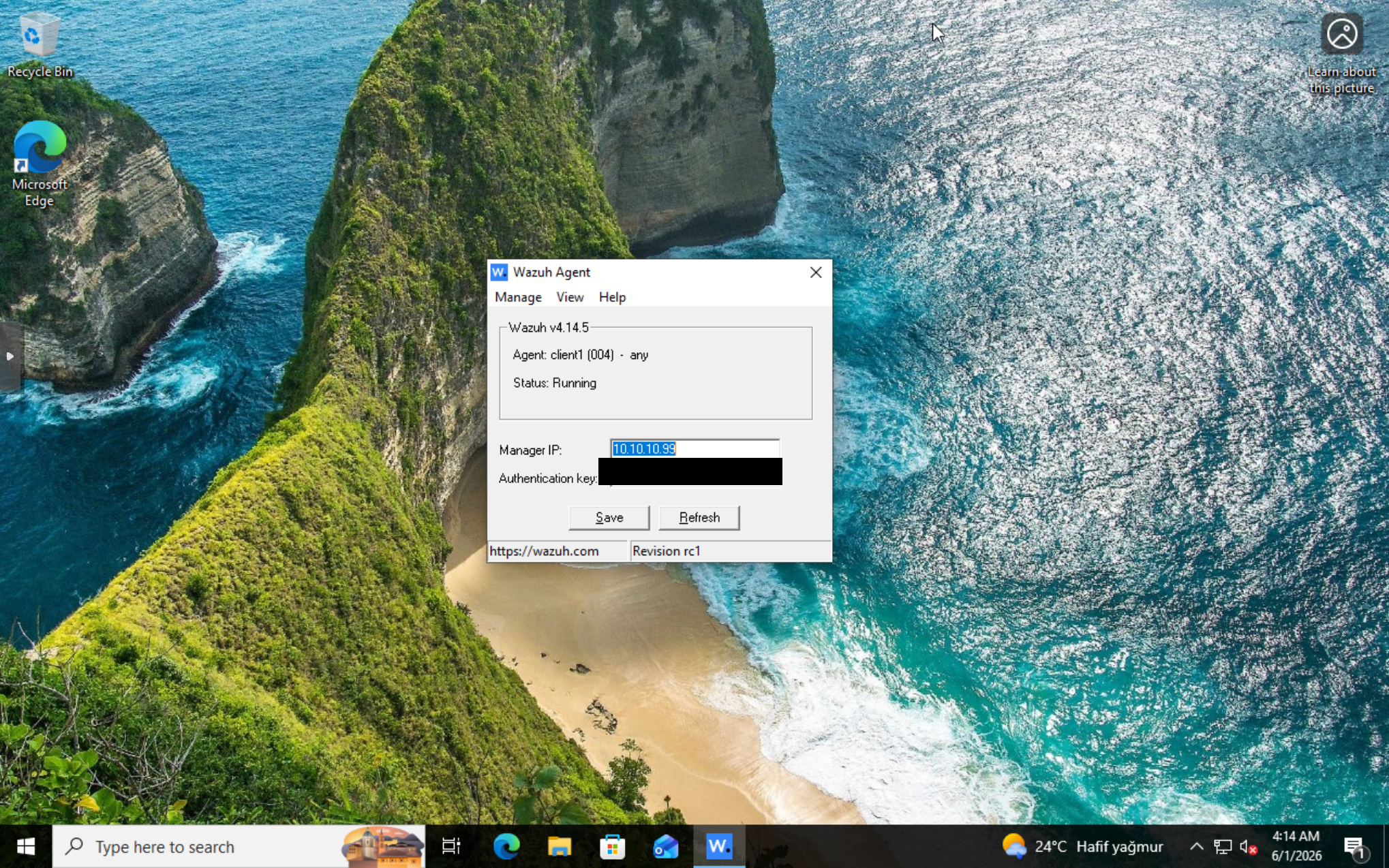
This is not detection work yet. It is the baseline that proves Windows endpoints can talk to the SIEM before the network is tightened.
Problems I Hit
GUI vs Core mattered for learning. Server Core is cleaner, but Desktop Experience gave me Server Manager, DNS Manager, DHCP Manager, and ADUC while I was still learning the flow.
Windows network settings UI rejected one attempt. The reliable path is setting IPv4 cleanly with IP, mask, gateway, and DNS. For a DC, DNS should point to itself.
DHCP Relay requires pfSense DHCP Server to be off. I had to disable pfSense DHCP everywhere I wanted relay behavior.
The first VLAN 60 lease took a little time. It looked broken at first, then the client received 10.10.60.100 after waiting/renewing.
Windows agent enrollment needs its own validation. The MSI can finish successfully while the endpoint still fails to appear in Wazuh if the manager IP, auth key, or firewall path is wrong.
What I Learned
AD depends heavily on DNS. Once the server becomes a domain controller, clients should use the DC for DNS, not public resolvers and not pfSense DNS.
I also learned why Windows DHCP is useful in an AD lab: it can hand out DNS suffix and DNS server values consistently across VLANs while pfSense remains the router/firewall.
Validation Evidence
ipconfig /release
ipconfig /renew
ipconfig /all
nslookup ad.plumy.lab
nltest /dsgetdc:ad.plumy.lab
whoami
whoami /fqdn
gpresult /r
Get-Service WazuhSvc
Expected result:
Client gets 10.10.60.100/24
Gateway is 10.10.60.1
DNS is 10.10.20.20
Domain join succeeds
whoami returns ad\plumy
WazuhSvc is Running
What This Enables Next
The lab now has identity, DNS, DHCP, and a domain-joined Windows client. That is the base for Sysmon, Wazuh Windows agent work, Atomic Red Team simulations, Group Policy experiments, and detection engineering.
The next major post is the final firewall rules and segmentation pass.
Quick Reference
Install-WindowsFeature AD-Domain-Services,DNS,DHCP -IncludeManagementTools
Add-DhcpServerv4Scope `
  -Name "vlan60" `
  -StartRange 10.10.60.100 `
  -EndRange 10.10.60.200 `
  -SubnetMask 255.255.255.0

Set-DhcpServerv4OptionValue `
  -ScopeId 10.10.60.0 `
  -Router 10.10.60.1 `
  -DnsServer 10.10.20.20 `
  -DnsDomain "ad.plumy.lab"
ipconfig /renew
nslookup ad.plumy.lab
nltest /dsgetdc:ad.plumy.lab