In Part 3, I created the VLAN structure. In this part, I build the container platform inside the CONTAINER VLAN.
The goal is not only to run Docker. I want important containers to have real lab IP addresses. That way, pfSense rules and Wazuh events can point to the real service, not only to the Docker host.
What I Built
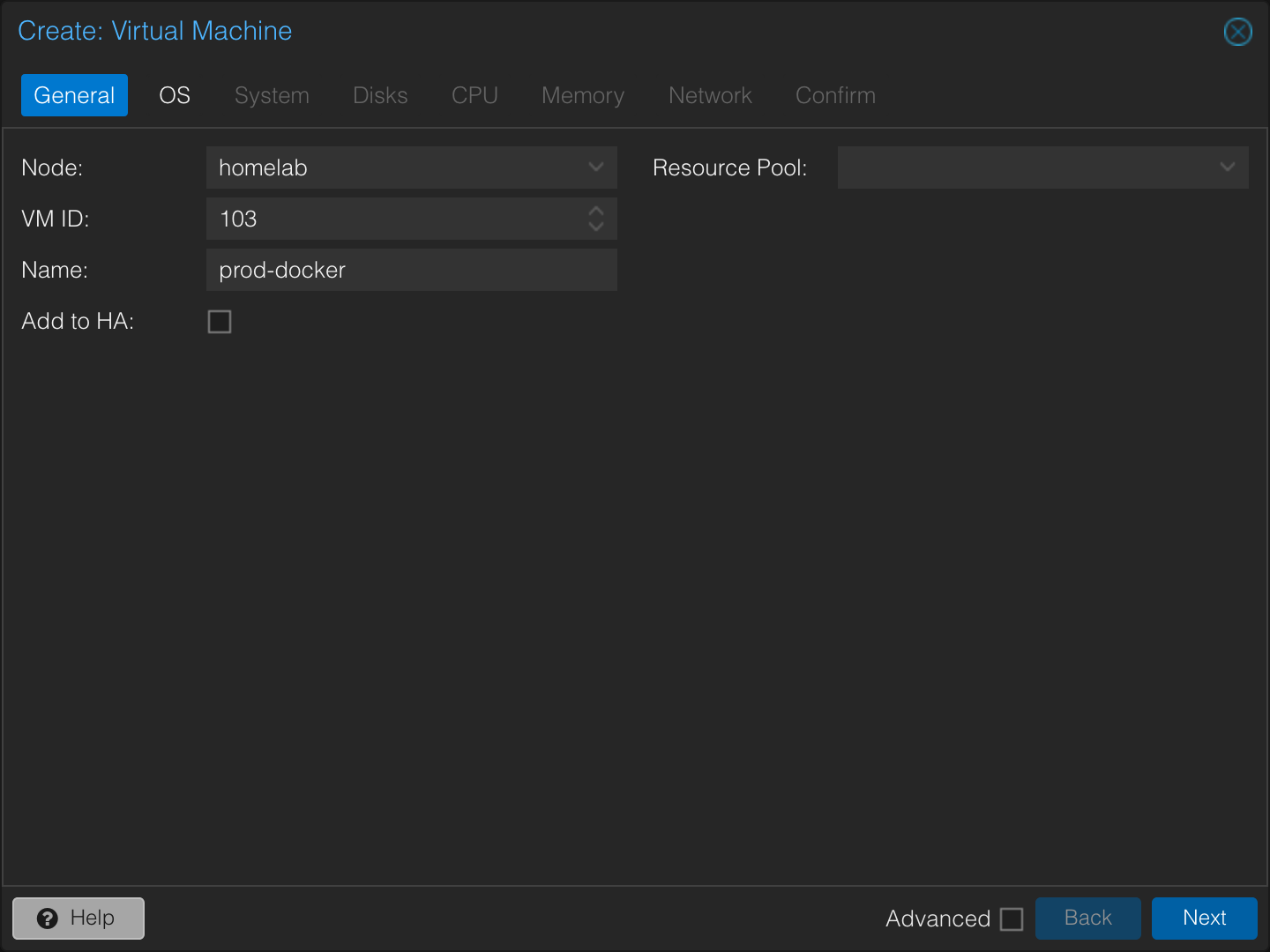
VM name:       prod-docker
VM ID:         103
OS:            Ubuntu Server 24.04
VLAN:          30 / CONTAINER
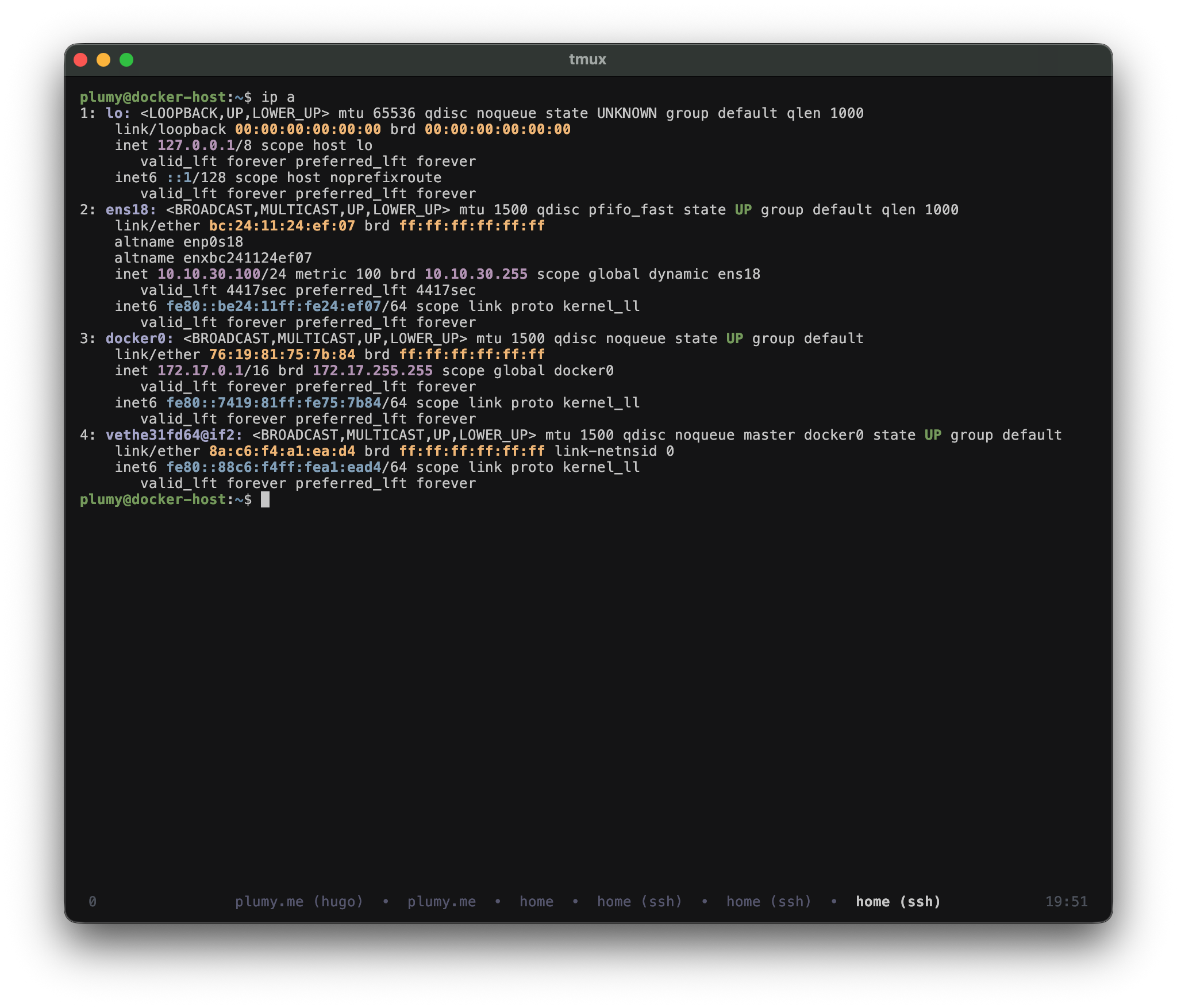
Host IP:       10.10.30.100
Docker UI:     Portainer CE
Macvlan net:   10.10.30.0/26
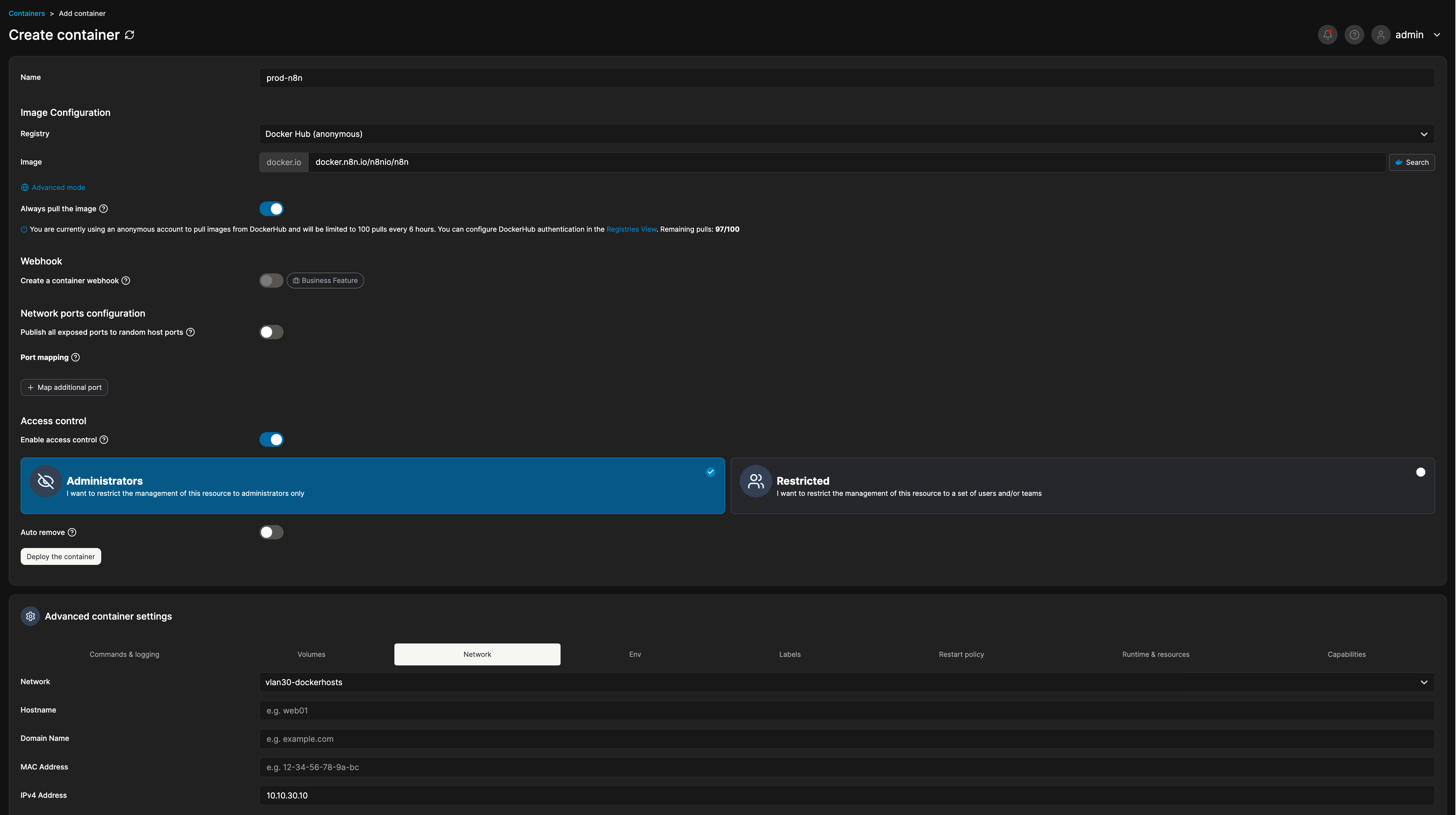
n8n IP:        10.10.30.10
Why This Matters
Docker’s default bridge NAT hides containers behind the host IP. That is fine for quick experiments, but it is not ideal for this lab. I want firewall rules and SIEM searches like:
source: 10.10.30.10  -> n8n
source: 10.10.30.20  -> vulnerable web app
source: 10.10.30.100 -> Docker host itself
Macvlan gives each container its own MAC address and IP address on the VLAN. To pfSense and the rest of the lab, those containers look like separate machines.
Topology Slice
pfSense CONTAINER gateway: 10.10.30.1
        |
Docker host: 10.10.30.100
        |
macvlan network: 10.10.30.0/26
        |-- n8n / automation
        |-- vulnerable web apps
        |-- future pipeline services
I keep the ranges separate on purpose:
10.10.30.0/26      -> macvlan container block
10.10.30.100       -> Docker host
10.10.30.100-200   -> normal DHCP pool for VLAN 30
Build Steps
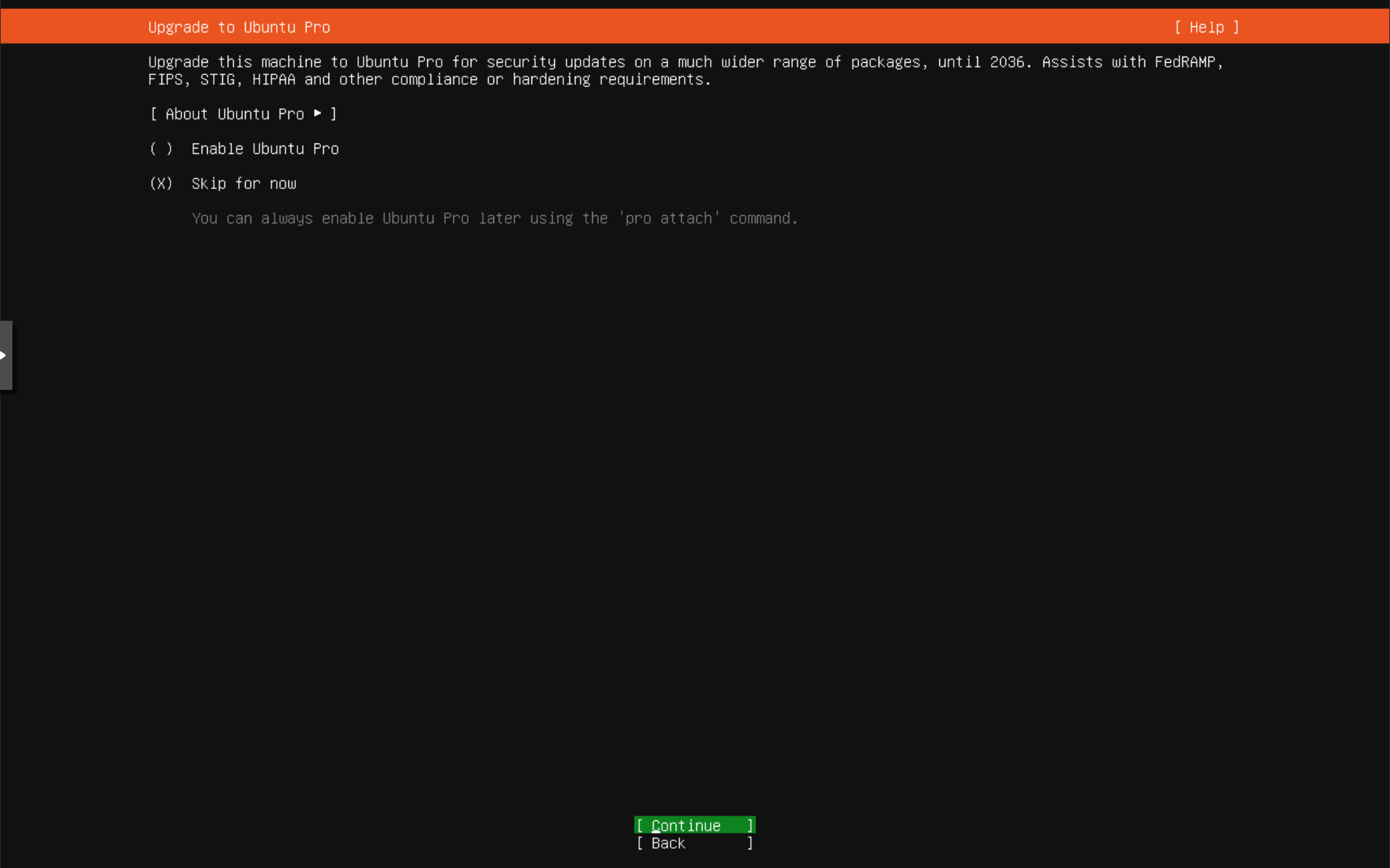
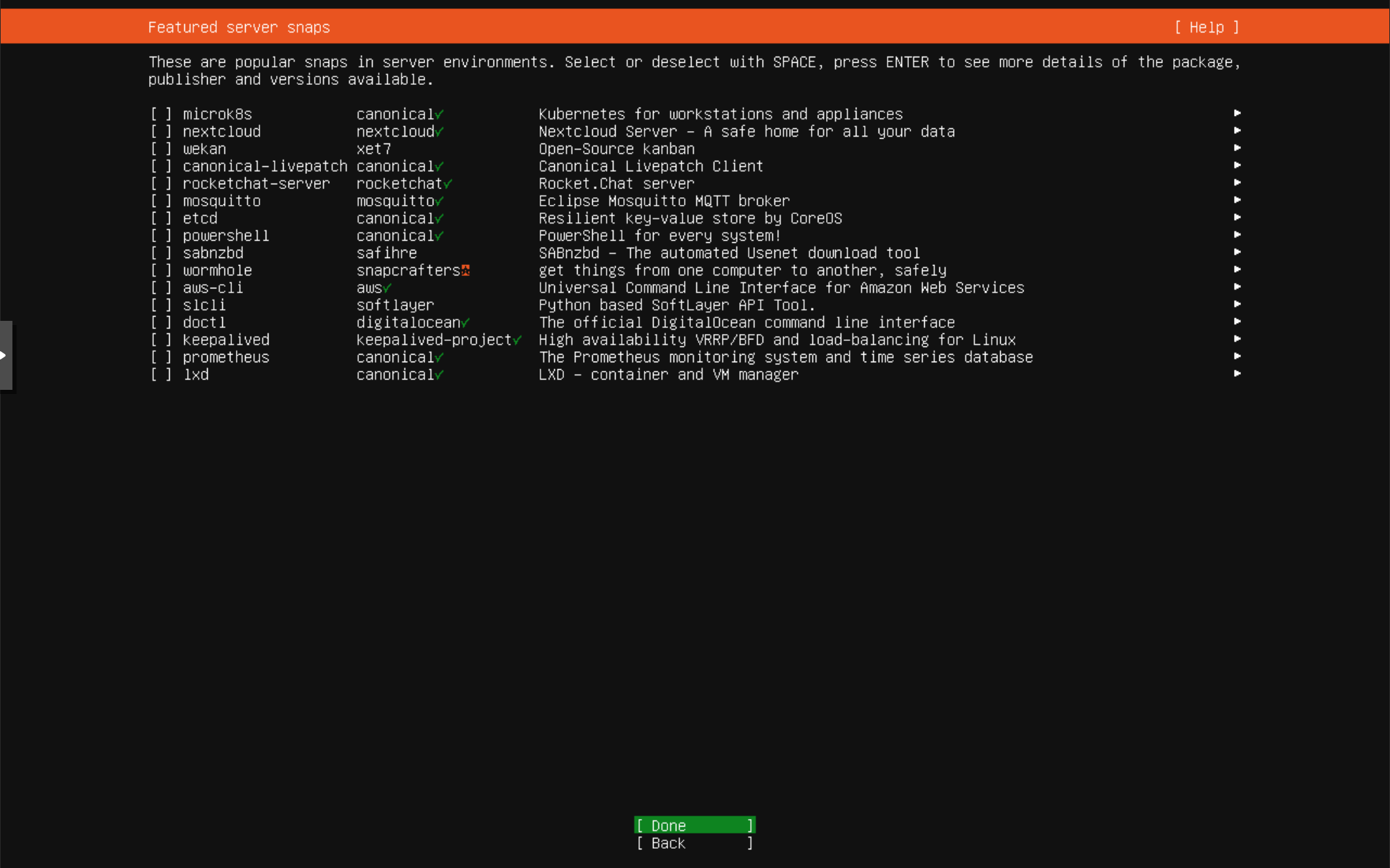
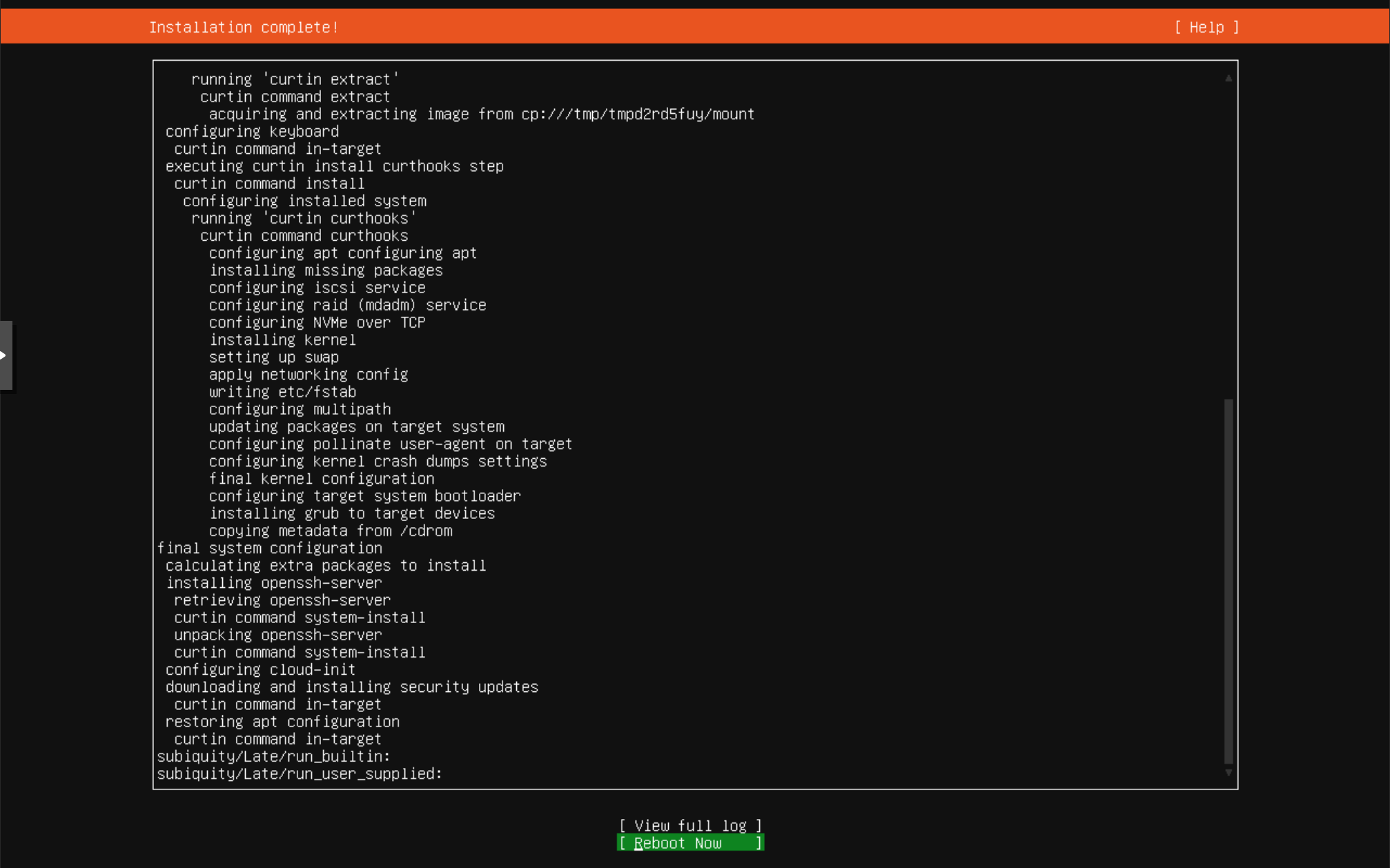
Install Ubuntu Server
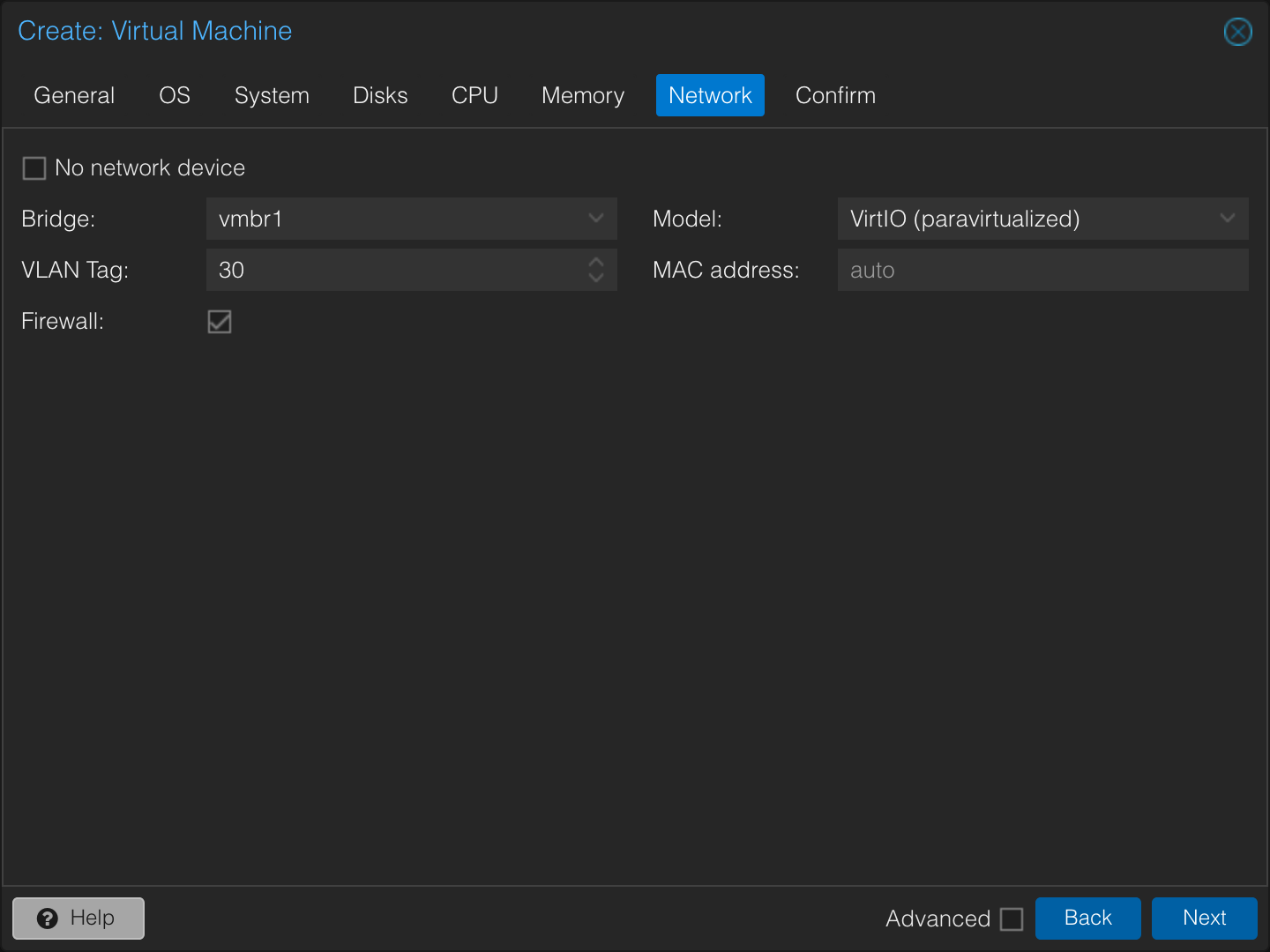
The VM is tagged into VLAN 30 from Proxmox. Ubuntu sees a normal NIC and receives DHCP from the VLAN.
Bridge:     vmbr1
VLAN tag:   30
Disk:       32 GB
CPU:        2 cores
RAM:        4 GB
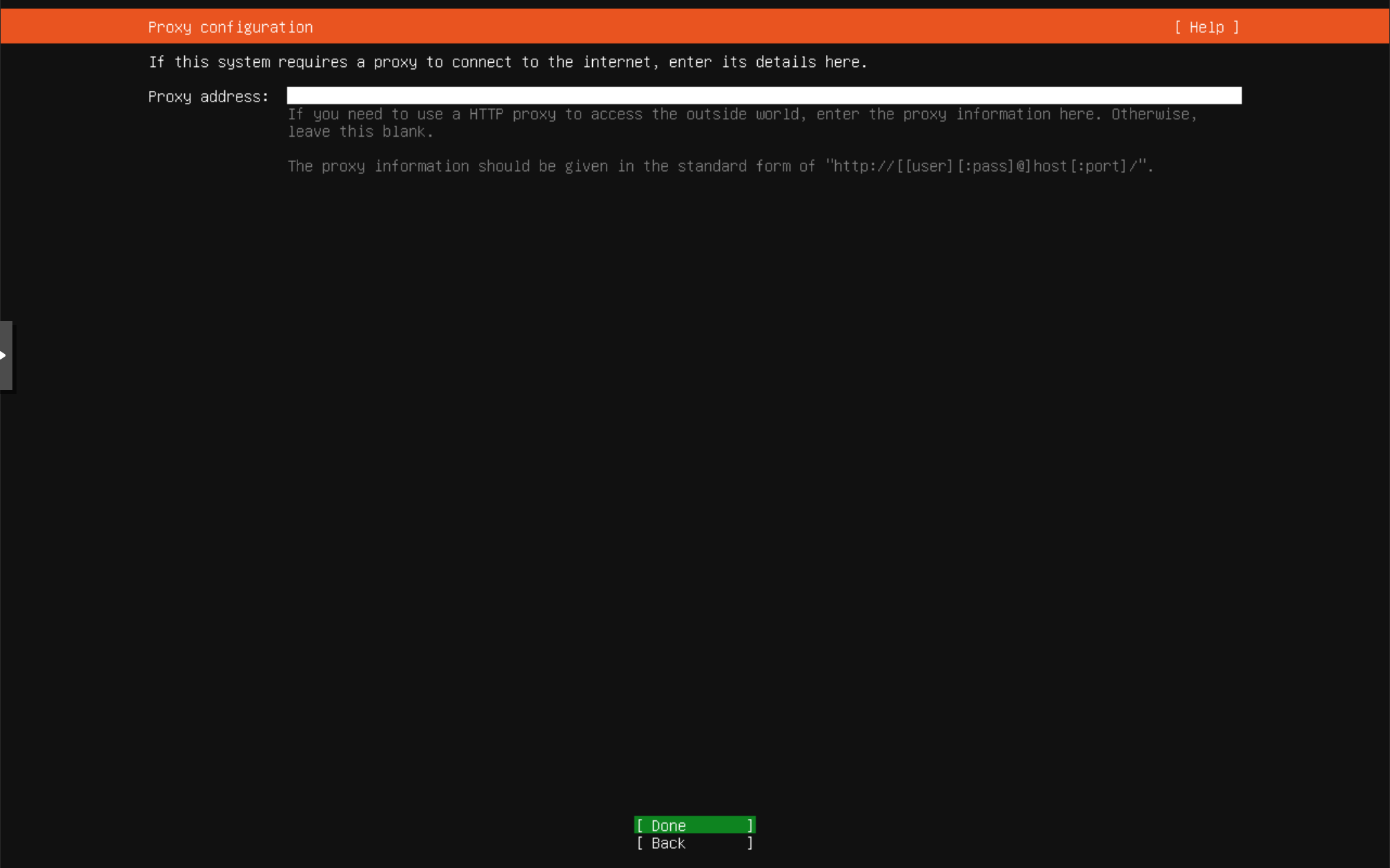
SSH:        enabled during install
I access the host through the jumpbox:
Host jumpbox
    HostName 10.10.1.50
    User admin

Host docker
    HostName 10.10.30.100
    User plumy
    ProxyJump jumpbox
Install Docker
sudo apt update
sudo apt install -y ca-certificates curl gnupg
sudo install -m 0755 -d /etc/apt/keyrings
curl -fsSL https://download.docker.com/linux/ubuntu/gpg | sudo gpg --dearmor -o /etc/apt/keyrings/docker.gpg
sudo chmod a+r /etc/apt/keyrings/docker.gpg

. /etc/os-release
echo "deb [arch=$(dpkg --print-architecture) signed-by=/etc/apt/keyrings/docker.gpg] https://download.docker.com/linux/ubuntu $VERSION_CODENAME stable" \
  | sudo tee /etc/apt/sources.list.d/docker.list

sudo apt update
sudo apt install -y docker-ce docker-ce-cli containerd.io docker-buildx-plugin docker-compose-plugin
sudo docker run hello-world
Optional non-root Docker access:
sudo usermod -aG docker plumy
newgrp docker
docker ps
That group is close to root-equivalent, so it is a convenience with a security cost.
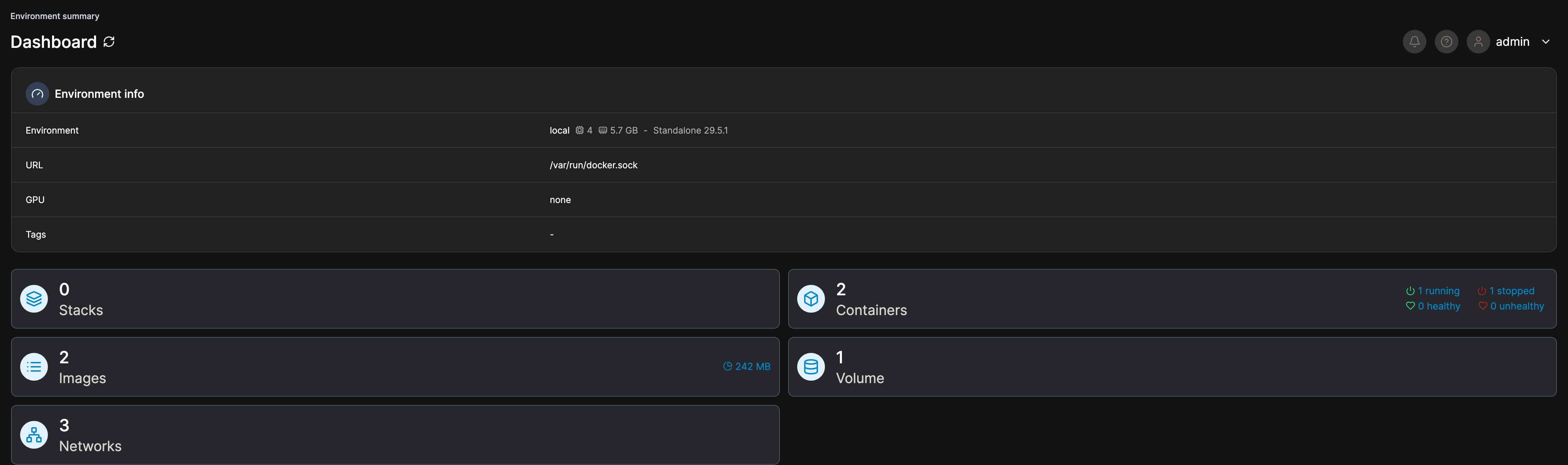
Install Portainer
docker volume create portainer_data

docker run -d \
  -p 9443:9443 \
  --name portainer \
  --restart=always \
  -v /var/run/docker.sock:/var/run/docker.sock \
  -v portainer_data:/data \
  portainer/portainer-ce:latest
I reach Portainer through SSH forwarding:
Host portainer
    HostName 10.10.30.100
    User plumy
    ProxyJump jumpbox
    LocalForward 9443 10.10.30.100:9443
ssh portainer
# browser: https://localhost:9443


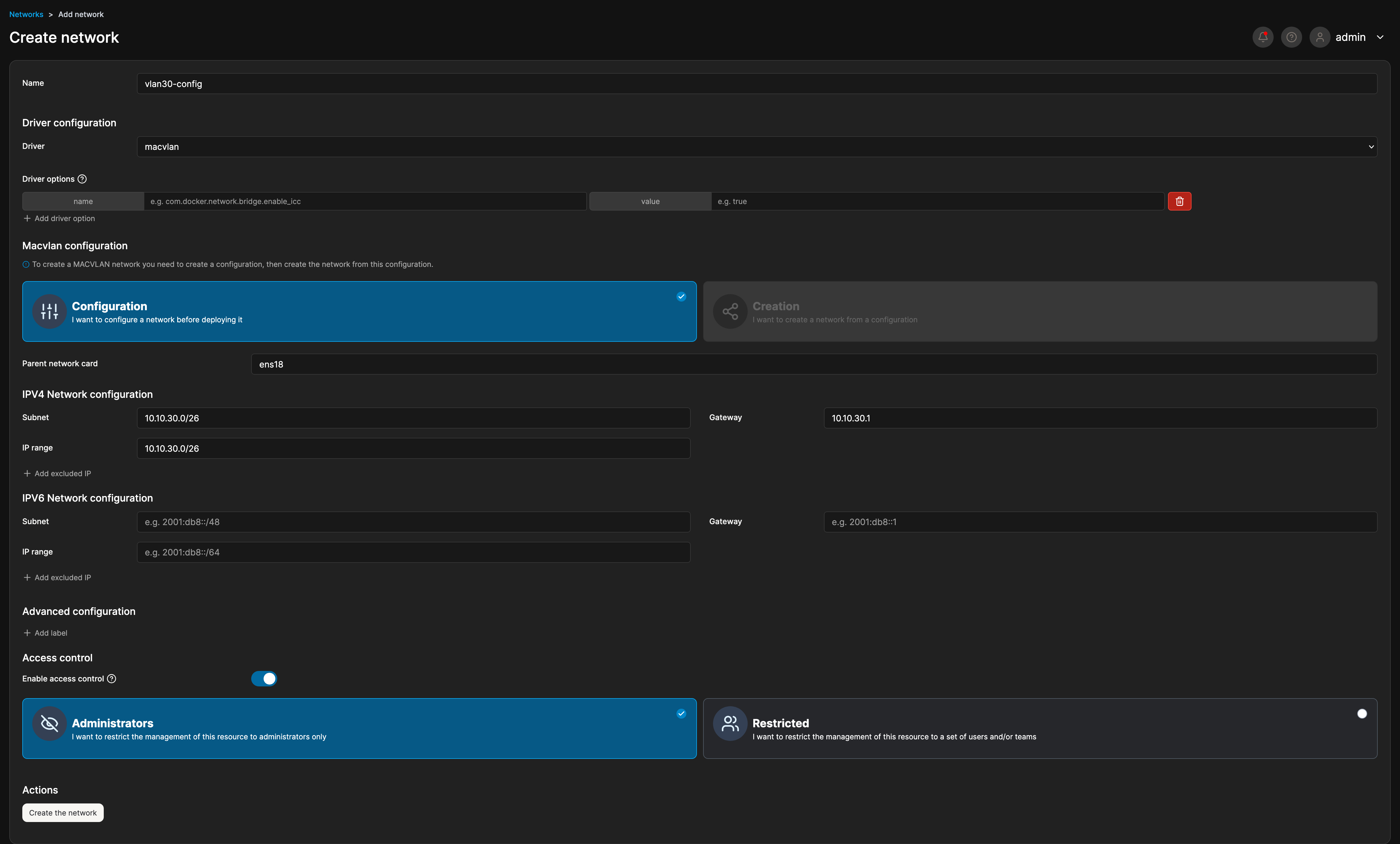
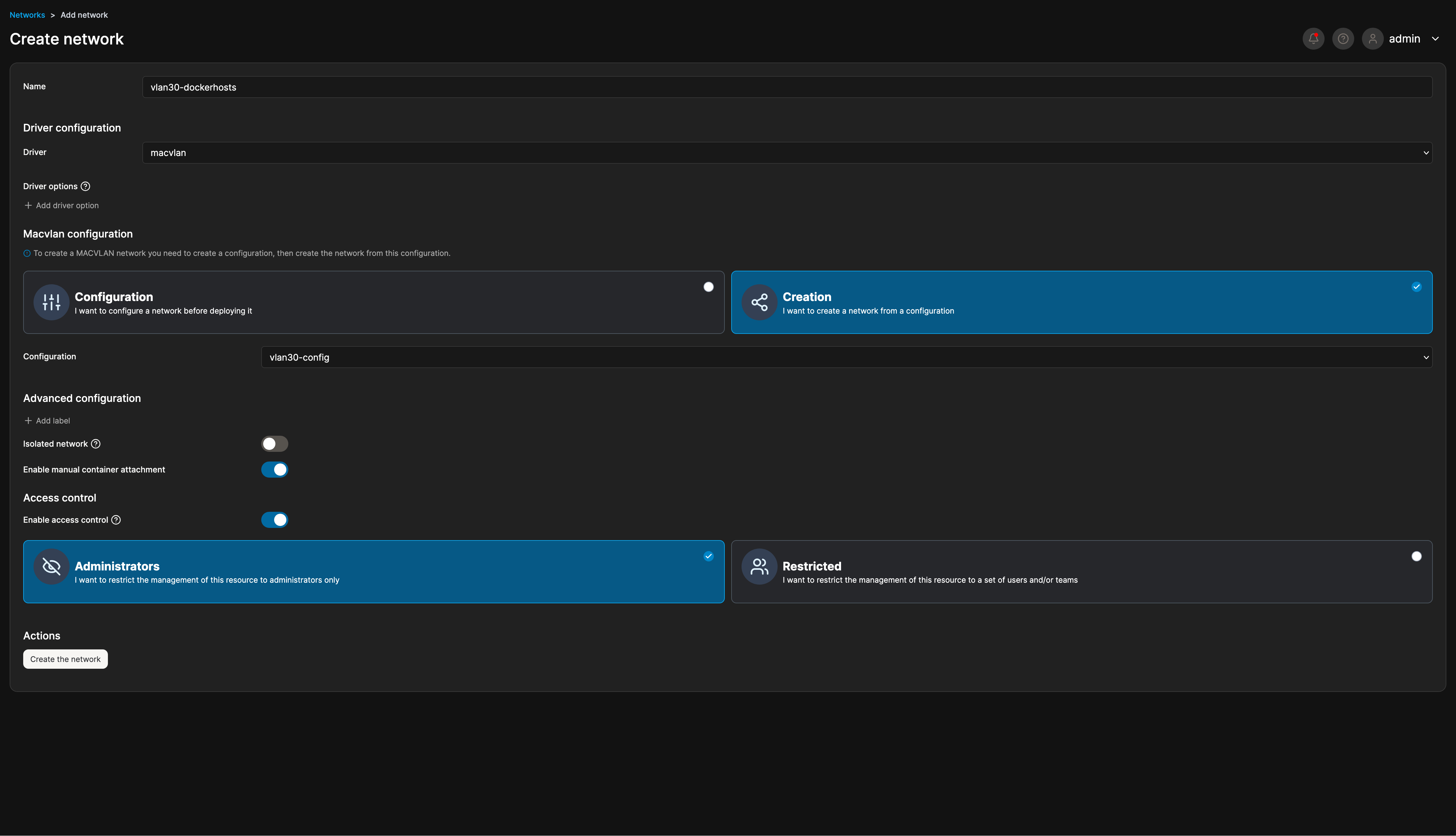
Create the Macvlan Network
The Docker host interface is ens18.
Driver:           macvlan
Parent:           ens18
Subnet:           10.10.30.0/26
Gateway:          10.10.30.1
Manual attach:    enabled
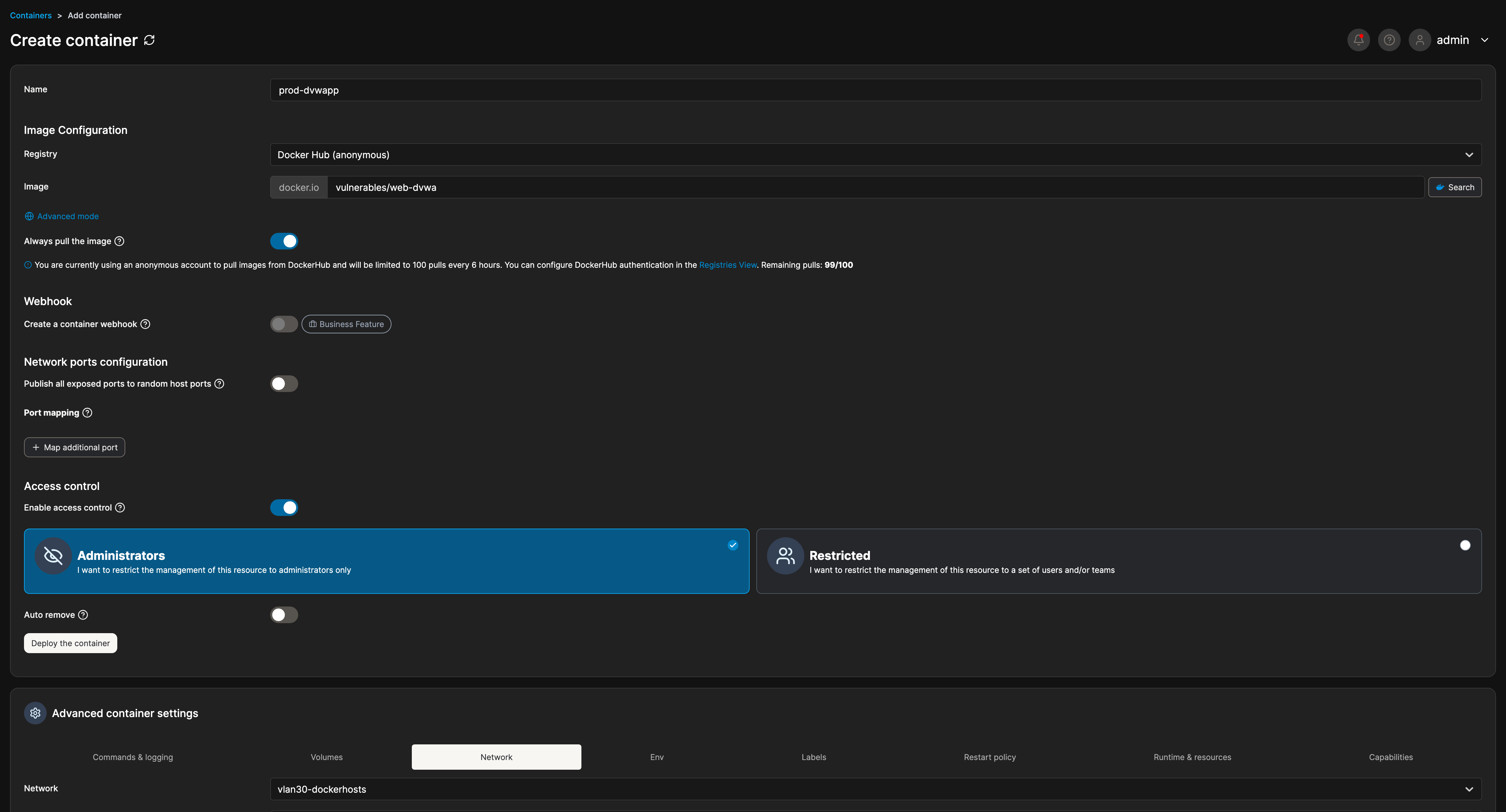
Compose example:
services:
  n8n:
    image: docker.n8n.io/n8nio/n8n
    networks:
      vlan30-dockerhosts:
        ipv4_address: 10.10.30.10

networks:
  vlan30-dockerhosts:
    external: true
Problems I Hit
Docker host cannot reach its own macvlan containers. From 10.10.30.100, curl 10.10.30.10 can hang even while the jumpbox reaches it fine. That is normal macvlan host isolation, not a broken container.
The gateway is .1, not a broadcast address. For 10.10.30.0/26, the gateway is still pfSense at 10.10.30.1. .63 or .255 are not valid gateways here.
DHCP overlap must be avoided. The macvlan block is 10.10.30.0/26; the normal DHCP pool starts at .100. They do not collide.
What I Learned
A Docker network choice is also a security and observability choice. Default bridge networking is easy, but it hides identity. Macvlan is more rigid, but it lets pfSense and Wazuh see individual services.
I also learned to test macvlan reachability from another host, not from the Docker host itself. The jumpbox and Kali are better validation points than the host running the containers.
Validation Evidence
docker ps
docker network ls
docker inspect n8n | grep 10.10.30.10
From the jumpbox:
curl -I http://10.10.30.10:5678
Through SSH tunnel:
ssh -L 5678:10.10.30.10:5678 admin@10.10.1.50
# browser: http://localhost:5678
What This Enables Next
Now I have a container platform for vulnerable web apps, automation services, and later an email phishing triage pipeline. Next, I add the attacker and the first vulnerable VM target in the PENTEST VLAN.
Quick Reference
Docker host:       10.10.30.100
Macvlan network:   10.10.30.0/26
Gateway:           10.10.30.1
n8n:               10.10.30.10
docker volume create portainer_data
docker run -d -p 9443:9443 --name portainer --restart=always \
  -v /var/run/docker.sock:/var/run/docker.sock \
  -v portainer_data:/data portainer/portainer-ce:latest